
Monitor Arm Buying Guide
Best Monitor Arms for Desk Setup
Compare monitor arms for everyday office work, dual-monitor setups, standing desks, and large ultrawide displays. Learn how to check desk thickness, monitor weight, VESA compatibility, and mounting clearance before buying.
Single & Dual Monitors
Budget to Heavy Duty
A monitor arm can help you position your screen at a more comfortable height, reclaim desk space, and adjust your viewing angle throughout the workday. However, not every arm fits every desk or monitor. Desk thickness, mounting clearance, screen weight, and VESA compatibility all matter.
This guide compares monitor arm options for different desk setups and explains what to check before purchasing. If you are still deciding between mounting styles, start with our guide to choosing a monitor arm.
Quick buying advice
- For a standard single monitor, prioritize reliable adjustment and a suitable weight range.
- For two screens, check the weight limit of each arm and the available horizontal or vertical adjustment.
- For a 49-inch ultrawide, verify the exact monitor model, weight, curvature, and tilt-head compatibility.
- For a thin or hollow desk, check the clamp range and desktop construction before installation.
Quick Comparison: Monitor Arms for Different Desk Setups
| Monitor Arm | Best For | What to Check | Price Level |
|---|---|---|---|
| Ergotron LX Desk Mount | Premium single-monitor setups | Monitor weight and supported dimensions | Premium |
| Ergotron HX | Heavy monitors and compatible ultrawides | Exact HX version and tilt-head requirements | Premium |
| VIVO Premium Aluminum | Budget single-monitor setups | Model-specific weight and screen limits | Budget |
| Amazon Basics Adjustable Arm | Straightforward single-monitor mounting | Current model specifications | Model dependent |
| Ergotron LX Dual | Premium side-by-side displays | Individual screen weight and width | Premium |
| HUANUO Dual Monitor Mount | Budget dual-monitor setups | Weight limit per arm and desk clearance | Budget |
| Mount-It! Laptop + Monitor Combo | Laptop and monitor workstations | Laptop tray dimensions and total load | Mid-range |
Specifications, availability, and prices can vary by model and configuration. Confirm the manufacturer’s current specifications before ordering.
How to Choose a Monitor Arm for Your Desk Setup
1. Check Monitor Weight and Weight Capacity
Start with your monitor’s weight without its original stand. Compare that figure with the arm’s supported weight range, not just its maximum advertised capacity. Some spring-assisted arms also have a minimum supported weight.
For large or curved displays, check the exact monitor model and the arm manufacturer’s compatibility guidance. Screen size alone does not tell you whether an arm can support a display safely. The monitor’s center of gravity and the arm’s tilt mechanism can also affect stability.
2. Confirm VESA Mount Compatibility
Many monitors use a four-hole VESA mounting pattern, commonly 75 × 75 mm or 100 × 100 mm. Check your monitor’s manual or specifications to confirm its mounting pattern and screw requirements.
If your monitor has no standard mounting holes, you may need a model-specific adapter. Some curved monitors also require the supplied spacer or adapter to ensure the mounting plate fits correctly.
3. Measure Desk Thickness and Clamp Clearance
Searching for a monitor arm for desk setup should include checking whether the clamp actually fits your desk. Measure the desktop thickness and inspect the edge before choosing a mount.
- Desk thickness: Compare your measurement with the manufacturer’s stated clamp range.
- Rear clearance: Check whether the desk sits against a wall or has a rear lip, cable tray, or crossbar that blocks the clamp.
- Desktop construction: Thin, hollow-core, glass, or fragile desktops may require a compatible reinforcement solution or a different mounting method.
- Grommet mounting: Confirm the required hole diameter and available space underneath the desktop.
If your desktop is thin or has an unusual edge, read our monitor arm guide for small desks before buying.
4. Choose Between a Gas-Spring and Mechanical-Spring Arm
Gas-spring and mechanical-spring designs can both provide adjustable screen positioning. The better option depends on the model, supported load, adjustment range, and how often you move the monitor.
- Gas-spring arms: Often convenient for frequent height and position changes. Correct tension adjustment is important.
- Mechanical-spring arms: Use a spring-based counterbalance system. Check the adjustment procedure and supported load for the specific model.
- Fixed or friction-based mounts: May suit a screen that rarely moves, but usually provide less convenient repositioning.
Do not assume that one mechanism is always more durable or more stable. Build quality, installation, load compatibility, and joint design matter just as much.
5. Decide Between Single, Dual, and Vertical Monitor Arms
- Single monitor arm: A practical choice for one standard monitor or one compatible ultrawide.
- Dual monitor arm: Useful when you want two separate screens on one desk mount. Check the weight limit for each arm and the total available adjustment range.
- Vertical stacking arm: Positions one monitor above another to save horizontal space. Confirm that the post provides enough height and that the upper display can tilt comfortably.
- Two separate arms: Offer more flexibility in screen placement, but require additional desk space and mounting points.
6. Consider Standing-Desk Movement
A monitor arm can help maintain a comfortable viewing position as a sit-stand desk moves between sitting and standing heights. However, the arm does not eliminate movement or wobble caused by the desk itself.
Check the desktop’s load rating, mounting location, and stability at standing height. Leave enough cable slack for the full range of desk movement, and make sure cables cannot snag on the arm or desk frame.
7. Look for Useful Adjustment and Cable Management
Check the height range, extension, swivel, tilt, and rotation specifications. If you regularly switch between landscape and portrait orientations, verify that the arm supports rotation with your monitor’s weight and dimensions.
Integrated cable channels can make a desk look tidier, but check whether they accommodate your power and video cables without pinching them during movement.
Monitor Arm Recommendations by Use Case
Best Premium Single Monitor Arm: Ergotron LX Desk Mount
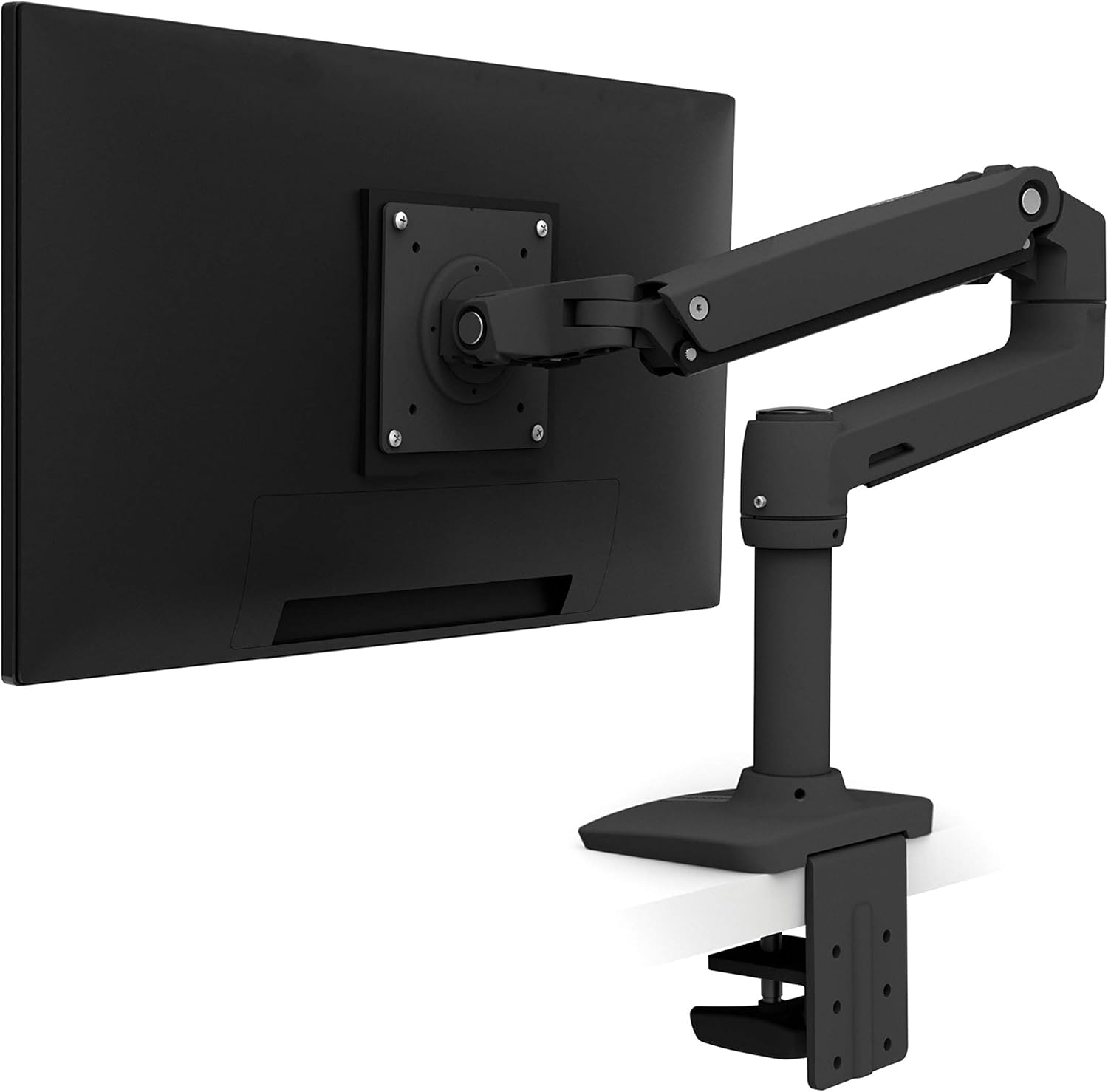
The Ergotron LX is a premium option to consider for a single-monitor workstation where smooth adjustment, a movable screen, and long-term usability matter.
Before purchasing, confirm the exact LX configuration, monitor weight, screen dimensions, desk clamp requirements, and current warranty terms. It may not be worth the extra cost if you rarely reposition a lightweight monitor.
Check Ergotron LX options on Amazon →
Best Heavy-Duty Option for Compatible Ultrawide Monitors: Ergotron HX
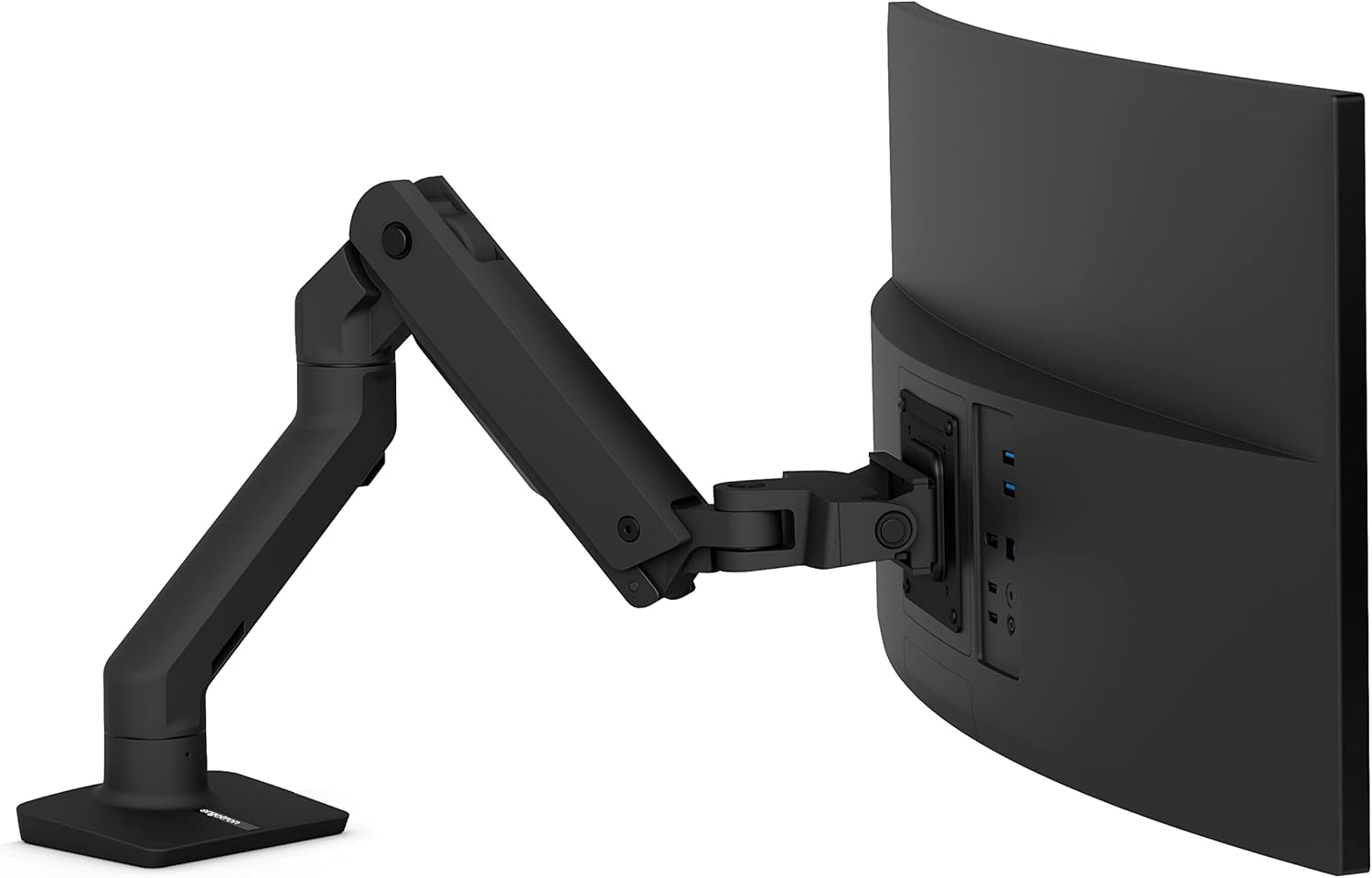
The Ergotron HX is worth evaluating for large, heavy displays that exceed the practical range of many standard monitor arms. Compatibility depends on the specific monitor, its weight and curvature, and the HX version or tilt-head configuration.
Do not assume that every 49-inch ultrawide will fit every HX configuration. Check the manufacturer’s compatibility guidance for your exact display before ordering.
Check Ergotron HX options on Amazon →
Best Budget Single Monitor Arm: VIVO Premium Aluminum
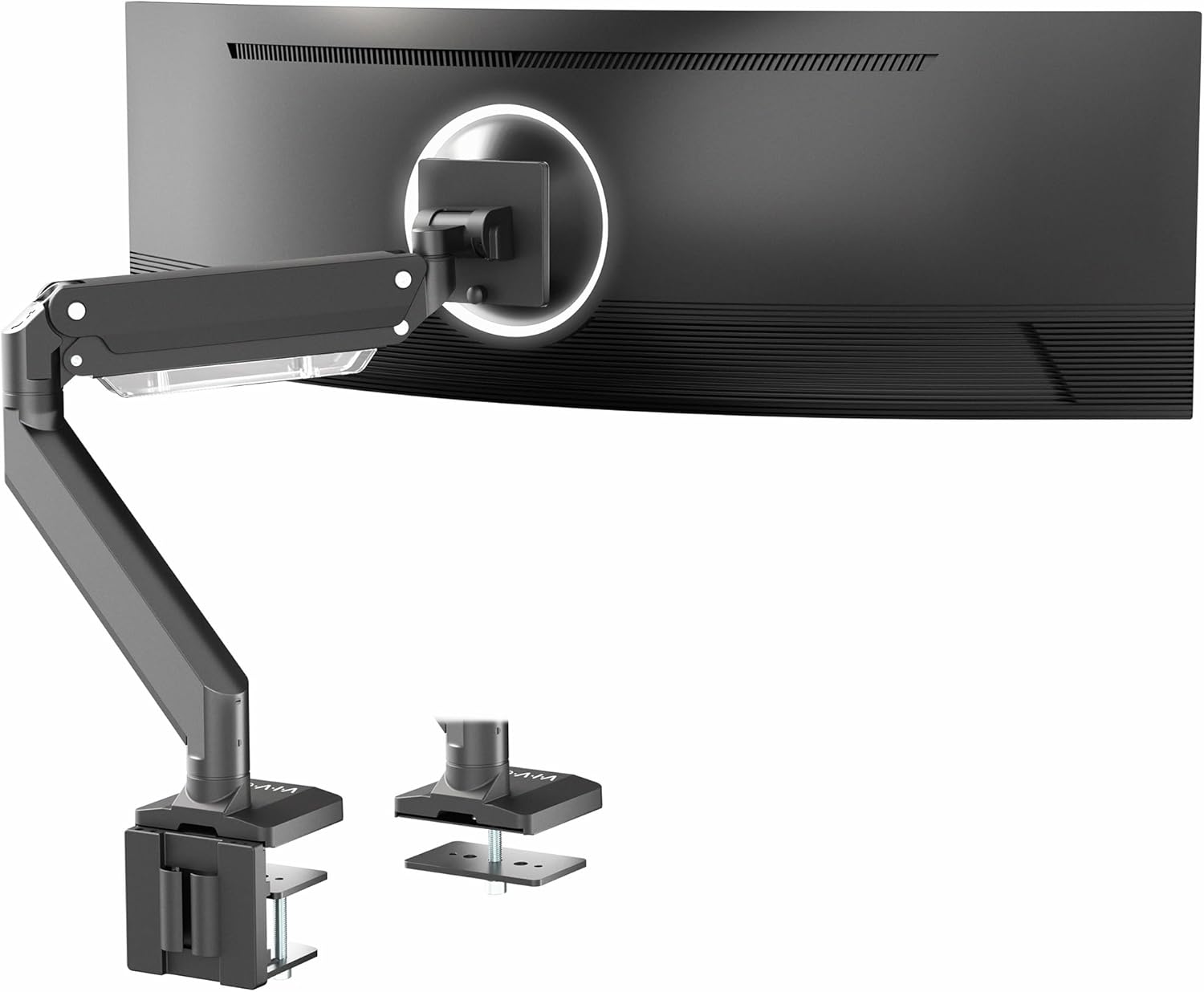
VIVO offers monitor mounting options for buyers who want adjustable positioning without spending as much as they might on a premium arm. Compare the exact model’s weight range, compatible screen size, mounting hardware, and adjustment mechanism.
This type of arm is best considered when your monitor falls comfortably within the manufacturer’s supported range and you do not need a specialized heavy-duty solution.
Check VIVO monitor arms on Amazon →
Best Budget Dual-Monitor Option: HUANUO Dual Monitor Mount
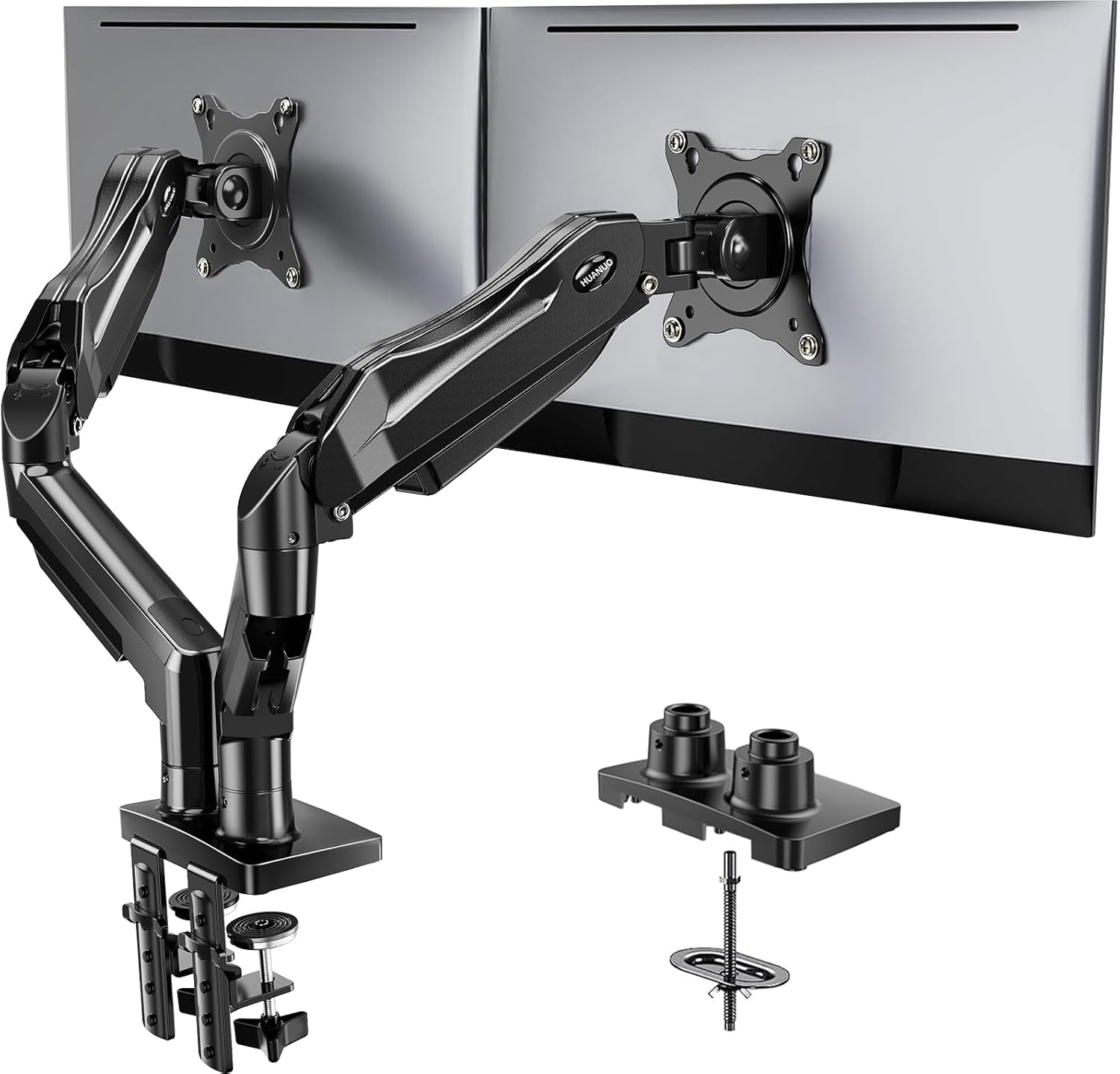
A HUANUO dual monitor mount may suit a workstation with two standard displays. The key checks are the supported weight per arm, the compatible screen dimensions, and whether both monitors can be positioned without hitting a wall or each other.
For the most comfortable arrangement, place your primary screen directly in front of you and position the secondary screen beside it. If both displays are used equally, center the gap between them in front of your seated position.
Check HUANUO dual monitor mounts on Amazon →
Best Alternative for Dual Monitors: Ergotron LX Dual
For buyers prioritizing a premium adjustable dual-monitor arrangement, the Ergotron LX Dual is another option to compare. Confirm the per-monitor weight limit and screen-size guidance, especially if the displays are different sizes or weights.
A dual arm is not automatically the best choice for every desk. Two separate arms may provide more independent positioning, while a shared mount can simplify the overall setup.
Check Ergotron LX Dual options on Amazon →
Best for a Laptop and Monitor Setup: Mount-It! Laptop and Monitor Arm
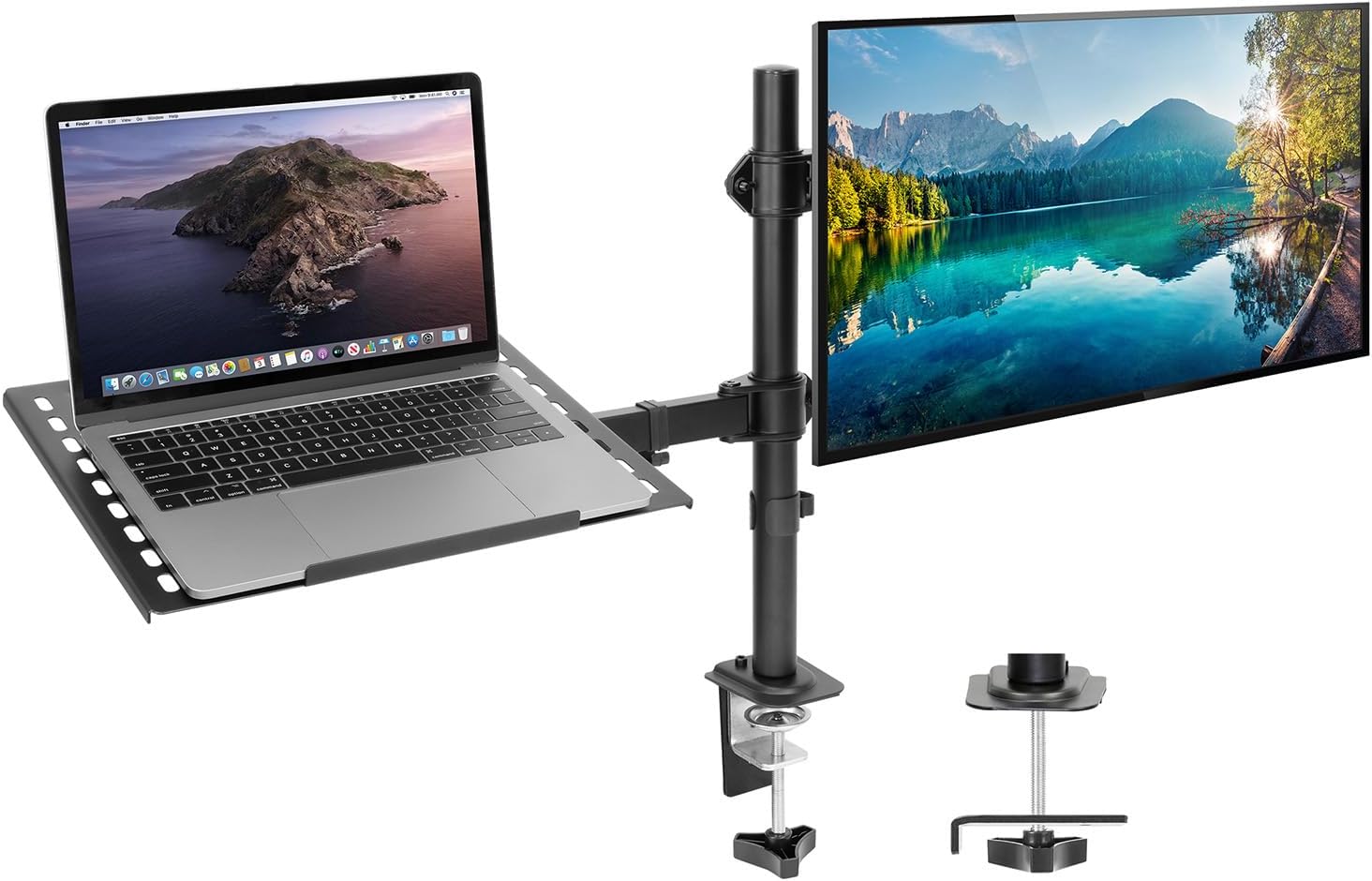
A laptop-and-monitor mounting combination can help elevate both screens and free up desktop space. Check the laptop tray’s dimensions, the supported laptop weight, and the monitor arm’s separate load limit.
If you type on the laptop for long periods, remember that raising its screen also raises its keyboard. An external keyboard and mouse usually make it easier to position the screen at a comfortable height without sacrificing typing posture.
Check laptop and monitor arm combos on Amazon →
How to Position a Monitor Arm for Better Ergonomics
Keep the Main Screen at a Comfortable Height
Adjust the monitor so your head and neck remain in a relaxed, neutral position. The top of the screen is commonly placed at or slightly below eye level, although the ideal height depends on your glasses, screen size, posture, and viewing habits.
Set a Comfortable Viewing Distance
Start with the screen roughly an arm’s length away, then adjust for screen size, text size, and visual comfort. If you find yourself leaning forward, try increasing text size or moving the monitor before changing your seating position.
Position Dual Monitors to Reduce Repeated Neck Turning
Place the screen you use most directly in front of you. Keep frequently used secondary displays close enough that you do not need to repeatedly rotate your neck to read them.
Check Cable Slack Before Moving the Desk
For a standing desk, move the desk through its full height range after installation. Confirm that power and video cables have enough slack and cannot be trapped by the monitor arm, desktop, or lifting frame.
Frequently Asked Questions
Is a monitor arm worth it for a desk setup?
A monitor arm can be useful if your original stand does not provide enough height adjustment, you need more usable desk space, or you frequently reposition your screen. Whether it is worth the cost depends on your monitor, desk, and workspace needs.
How thick should a desk be for a monitor arm?
There is no single thickness that works for every monitor arm. Check the clamp’s stated minimum and maximum desktop thickness, as well as the available space behind and underneath the desk. Also consider whether the desktop material can withstand the clamping force.
Can you use a monitor arm on a thin desk?
Sometimes. The desk must be compatible with the mounting hardware and able to support the load without excessive bending or crushing. A suitable reinforcement plate may help distribute pressure on some desks, but it does not make every thin or hollow desktop safe to clamp.
Why does my monitor arm keep sagging?
Common causes include incorrect spring tension, a monitor that falls outside the supported weight range, loose joints, or an unsuitable tilt-head configuration. Follow the manufacturer’s adjustment instructions and stop using the mount if the desktop or clamp appears damaged.
Can I use a monitor arm with a standing desk?
Yes, provided the arm and desktop are compatible. Check stability at standing height, secure the clamp correctly, and leave enough cable slack for the desk’s full movement range.
Can one dual monitor arm support two different monitor sizes?
Some dual arms support different screen sizes, but both displays must remain within the applicable weight and dimension limits. Check the adjustment range and make sure the monitors can be positioned without colliding with each other or the wall.
Do all monitor arms fit VESA monitors?
No. VESA patterns, screw requirements, supported screen dimensions, and mounting plate designs vary. Confirm that the monitor’s mounting pattern matches the arm, and check whether an adapter is required.
Should I buy a monitor arm or a monitor riser?
A monitor riser is often simpler if you only need extra height and rarely move the screen. A monitor arm is more useful when you want to adjust height, extension, tilt, or rotation, or free up more space underneath the display.
Final Verdict: Choose a Monitor Arm That Fits Your Desk
The best monitor arm for your desk setup is the one that fits your screen, desktop, and daily workflow—not necessarily the most expensive model.
- For a premium single-screen workstation: Compare the Ergotron LX with other arms that meet your monitor’s requirements.
- For a heavy ultrawide: Verify the exact monitor and tilt-head compatibility before considering a heavy-duty model such as the Ergotron HX.
- For a budget setup: Compare VIVO and other entry-level options based on supported weight, mounting hardware, and adjustment range.
- For two displays: Compare HUANUO and Ergotron dual-mount options, checking each arm’s load limit.
- For a laptop and monitor: Consider a combination mount and use an external keyboard and mouse when needed for a more comfortable typing position.
Before ordering, verify monitor weight, VESA compatibility, desk thickness, clamp clearance, and the current product specifications. These checks matter more than a long feature list.
Explore More Monitor Arm Guides
Need help choosing a mount for a specific workspace? Continue with these related guides:
Disclosure: This article contains affiliate links. If you purchase through these links, we may earn a commission at no additional cost to you. Product specifications, availability, and prices may change; verify details with the manufacturer or retailer before purchasing.