
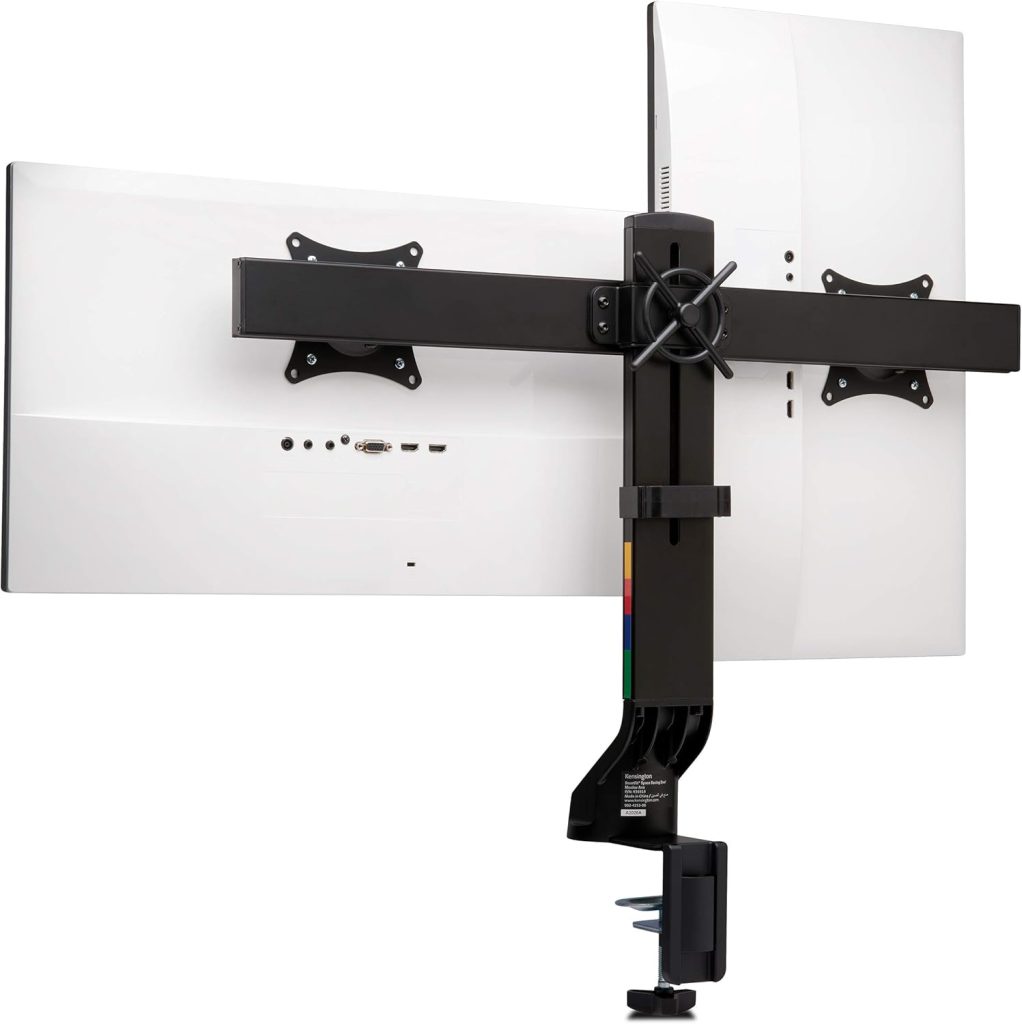
If you spend your workday glancing between two screens, you’ve probably felt the sting of poor dual monitor height ergonomics. That nagging neck ache by 3 p.m. isn’t a mystery — it’s physics. When your monitors sit at mismatched heights, your neck rotates and tilts hundreds of times per shift.
I’ve spent years helping remote workers and desk-bound pros fix their setups. The core problem is almost always the same: monitors placed too low, parked off to one side, or resting at wildly different heights. Your eyes and cervical spine pay the price.
Here’s the good news: correct monitor height isn’t complicated. This guide walks you through the exact measurements, the step-by-step adjustment process, and the tools that make it effortless. By the end, you’ll know precisely where every pixel should sit.
📌 Why Dual Monitor Height Matters for Your Posture
Your monitor height dictates your posture more than any other piece of desk equipment. Get it wrong, and your body pays the price quietly — at first. After a few hours, that “minor” misalignment becomes a nagging ache in your neck, shoulders, or lower back.
Here’s the mechanics of it. When your screen sits too low, your head tilts forward to see it. Ergonomists often note that the human head weighs roughly 10–12 pounds, and that load multiplies dramatically as your neck flexes. Ten degrees of tilt might not feel like much, but hold it for an eight-hour workday and your upper trapezius muscles will protest.
Your eyes are just as sensitive as your neck. Screens positioned too high force you to look upward, which opens your eyes wider and accelerates tear evaporation — a fast track to dry, irritated eyes. Too low, and the increased blink strain can leave your vision feeling blurry by mid-afternoon. The distance matters too; monitors placed too close or too far force your focusing muscles to work overtime.
All of this circles back to one goal: a neutral spine posture. That means your ears stack over your shoulders, and your shoulders stack over your hips. When your screen is set at the right height, your head stays balanced over your neck and your spine carries your weight naturally. When it’s not, your body compensates with muscle tension.
Think of monitor height as the foundation of your ergonomic setup. You can buy the fanciest chair and the most supportive keyboard tray, but if your screens sit at the wrong height, you’ll still end up hunched. Get the height right first, and everything else falls into place.
📌 Ideal Height for Your Primary and Secondary Monitors
Start with one simple rule: the top bezel of your primary monitor should sit at or just below eye level. That puts your gaze in a comfortable 15 to 30 degree downward angle, which keeps your neck neutral and your eyes relaxed through a full workday.
Your primary monitor belongs centered directly in front of you, about an arm’s length away. For most desks that works out to roughly 20 to 28 inches from your eyes, depending on screen size. If you catch yourself leaning forward to read, scoot the display closer or bump up your OS scaling instead of hunching.
Now bring the secondary monitor into the equation. Angle it inward by about 15 to 20 degrees and align its top edge with the primary monitor’s top edge. That alignment matters more than matching the bottom, because your eyes naturally track along the top border when you glance between screens.
Screen size and aspect ratio change the setup slightly. On a 27-inch or larger panel, placing the top edge at eye level means the screen’s center sits a bit below your gaze — that’s exactly what you want. With an ultrawide, keep the panel flat rather than tilted upward, and lower the mount so your eyes still hit the upper third of the display.
Mixed-resolution dual setups are more common than ever, and they’re easy to handle. Match the physical top edges first, then adjust scaling on each display so text and windows feel consistent. If your second screen is a laptop, raise it on a sturdy stand to reach the same height instead of accepting a permanent tilt.
🔑 How to Measure and Adjust Your Dual Monitor Setup Step by Step
Start with your eye level. Sit in your normal working posture — back supported, feet flat, arms bent to about 90 degrees. Close your eyes, relax your neck, then open them. Where your gaze lands on the wall is your neutral eye level.
Measure from the floor to that spot with a tape measure. For most people between 5’4″ and 6’0″ tall, this falls between 48 and 62 inches. Jot that number down — it’s your target for the top of the primary monitor’s bezel.
The general rule: the top bezel should sit at or just below your eye level, putting your gaze about 15–30 degrees downward. Ergonomists at Cornell and the Mayo Clinic cite this range for comfortable screen work. It won’t magically fix existing neck pain, but it does keep your head in a far more neutral posture.
Now compare your current setup. Measure from the floor to each monitor’s top bezel, then adjust in this order:
- Adjust your chair first. Raise or lower the seat until your eyes align with the top third of the primary screen.
- Use a monitor stand or arm. A VESA mount gives you the height range most factory stands simply lack.
- Stack books as a temporary fix. A couple of thick hardcovers under each monitor foot works surprisingly well while you shop for something proper.
Check viewing distance while you’re at it. For a 24-inch monitor, sit roughly 20–24 inches away. For a 27-inch, push that to 24–30 inches. Your eyes should sweep across the primary screen without much head movement.
Tilt is simpler than people expect: give the primary monitor a slight 10–20 degree upward tilt, and keep the secondary screen at the same height or slightly lower. To verify alignment, lay a straight edge across both top bezels. If it wobbles, adjust. A laser level speeds this up and takes about a minute.
That’s it — ten minutes now saves your neck from daily craning later.
🔍 Best Tools and Accessories for Achieving Correct Monitor Height
Getting the height right starts with the right hardware. After mounting dozens of dual setups, I can tell you that a monitor arm beats any stack of books for fine-tuning your screen alignment.
Gas spring arms are the clear winner for dual monitors. They let you raise or lower each screen independently, so your primary and secondary displays can sit at different heights when needed. The Ergotron LX offers 13 inches of vertical travel per monitor and smooth, tool-free adjustment. Fixed arms like the Mount-It! are cheaper and sturdier, but you’ll need an Allen wrench every time you want to change heights.
If you’d rather skip mounting hardware entirely, monitor risers keep both screens locked at the same level. Solid steel or bamboo risers hold well over 50 lbs and cost under $40, making them a no-fuss option for identical monitors. Just know you lose individual height control.
When choosing a mount, check the vertical adjustment range in the specs. Anything under 8 inches per monitor feels limiting, especially if you use a standing desk. VIVO’s STAND-V002 gives you about 10 inches of travel per screen for around $60, which is a solid mid-range choice.
Cable management is the last piece. Velcro straps and under-arm cable channels keep wires tidy without interfering with height adjustments. Most dual arms, including VIVO and Ergotron models, route cables internally—this stops cords from snagging when you move your screens up or down.
| Product | Type | Height Travel | Weight Capacity | Price Range | Best For | Check Price |
|---|---|---|---|---|---|---|
| VIVO STAND-V002 | Gas spring arm | ~10 in per monitor | 22 lbs per screen | $50–$70 | Budget dual setups | Check Price → |
| HUANUO Dual Monitor Arm | Gas spring arm | ~8 in per monitor | 19.8 lbs per screen | $40–$60 | Tight budgets, light monitors | Check Price → |
| Ergotron LX Dual Stacking | Gas spring arm | 13 in per monitor | 25 lbs per screen | $300–$400 | Heavy monitors, sit-stand desks | Check Price → |
| Mount-It! Fixed Dual Arm | Fixed arm | Set once | 22 lbs per screen | $30–$50 | Static desks, set-and-forget users | Check Price → |
For most home offices, a mid-range gas arm from VIVO or HUANUO hits the sweet spot between price and usability. If you run heavy 32-inch monitors on a sit-stand desk, Ergotron’s smooth motion is worth the premium. Whichever you pick, the goal is the same: both screens at eye level without strain.
📌 Common Dual Monitor Height Mistakes to Avoid
Even with the best intentions, small setup errors can undo all your ergonomic work. Here are the mistakes I see most often in home offices — and how to fix them quickly.
1. Placing Monitors at Different Heights
When your screens sit at different heights, your neck constantly tilts up and down to refocus. That repetitive motion strains your cervical spine over time. Align both monitors so their top bezels sit at the same level. The secondary screen can angle slightly to the side, but its height should match the primary.
2. Centering the Seam Instead of the Primary Screen
Many people center the bezel where the two monitors meet. That forces your head to rotate left or right all day. Position your primary monitor directly in front of your nose, and place the secondary screen beside it. Your neck stays neutral, and your eyes do the work.
3. Setting Screens Too High or Too Low
Too-high screens make you look up, drying out your eyes and straining your neck. Too-low screens collapse your upper back into a hunch. The corrective cue: your eyes should land at the top third of the primary screen. If you feel constant neck fatigue, recheck that target.
4. Ignoring Screen Tilt and Glare
Even at the perfect height, glare forces you into awkward leaning postures to see the display. Tilt the screen slightly back — about 10 to 20 degrees — to match your natural line of sight. Position windows to your side, not behind you, to minimize reflection.
5. Forgetting Glasses Wearers
If you wear bifocals or progressives, your optimal screen height may be lower than the standard recommendation. Your eyes should pass through the reading zone of your lenses comfortably. Some wearers need the monitor a couple inches lower to avoid tilting their head back.
6. Skipping Re-Evaluation After Chair or Desk Changes
Your monitor height is only correct relative to your current seat and desk. Swap chairs or add a cushion, and you’ve changed the math. Re-measure your eye level every time you change furniture. It takes two minutes and saves weeks of nagging neck pain.
❓ FAQ
❓ FAQ: Dual Monitor Height Ergonomics
Should both monitors be the exact same height?
Not necessarily. Your primary monitor should sit at eye level, but the secondary can sit slightly lower or higher. The key is keeping both within your natural head movement range, so you’re not tilting your neck up or down for long stretches.
How far away should dual monitors be from your eyes?
Aim for roughly an arm’s length — about 20 to 30 inches from your eyes. You should be able to read text comfortably without leaning forward. If you’re squinting or straining, push the monitors back a few inches.
What is the ideal viewing angle for a secondary monitor?
Place the secondary screen at a 15 to 30 degree angle from your primary line of sight. Tilt it slightly toward your face to reduce glare and keep the viewing angle consistent. The goal is minimal head rotation — about 30 degrees of horizontal swivel is the comfortable limit.
Are monitor arms worth it for dual monitor height ergonomics?
In most cases, yes. A dual monitor arm gives you independent height, tilt, and rotation control, which is almost impossible to achieve with stacked books or mismatched stands. They also free up desk space. Budget arms start around $50, while premium gas-spring models run $150 to $300.
Can monitor height cause neck pain?
Absolutely. If your screens sit too low, you’ll crane your neck forward, which can strain your upper traps and cervical spine over time. Many users report that raising monitors to eye level helps relieve daily neck and shoulder tension, though persistent pain should be checked by a healthcare professional.
How do I set up dual monitors if I have a laptop as a secondary screen?
Use a laptop stand to bring the laptop screen up to eye level. This usually means the built-in keyboard gets elevated too, so pick up a separate keyboard and mouse. If your laptop screen is much smaller, position it closer to you and angle it inward slightly to match the secondary monitor’s viewing distance.