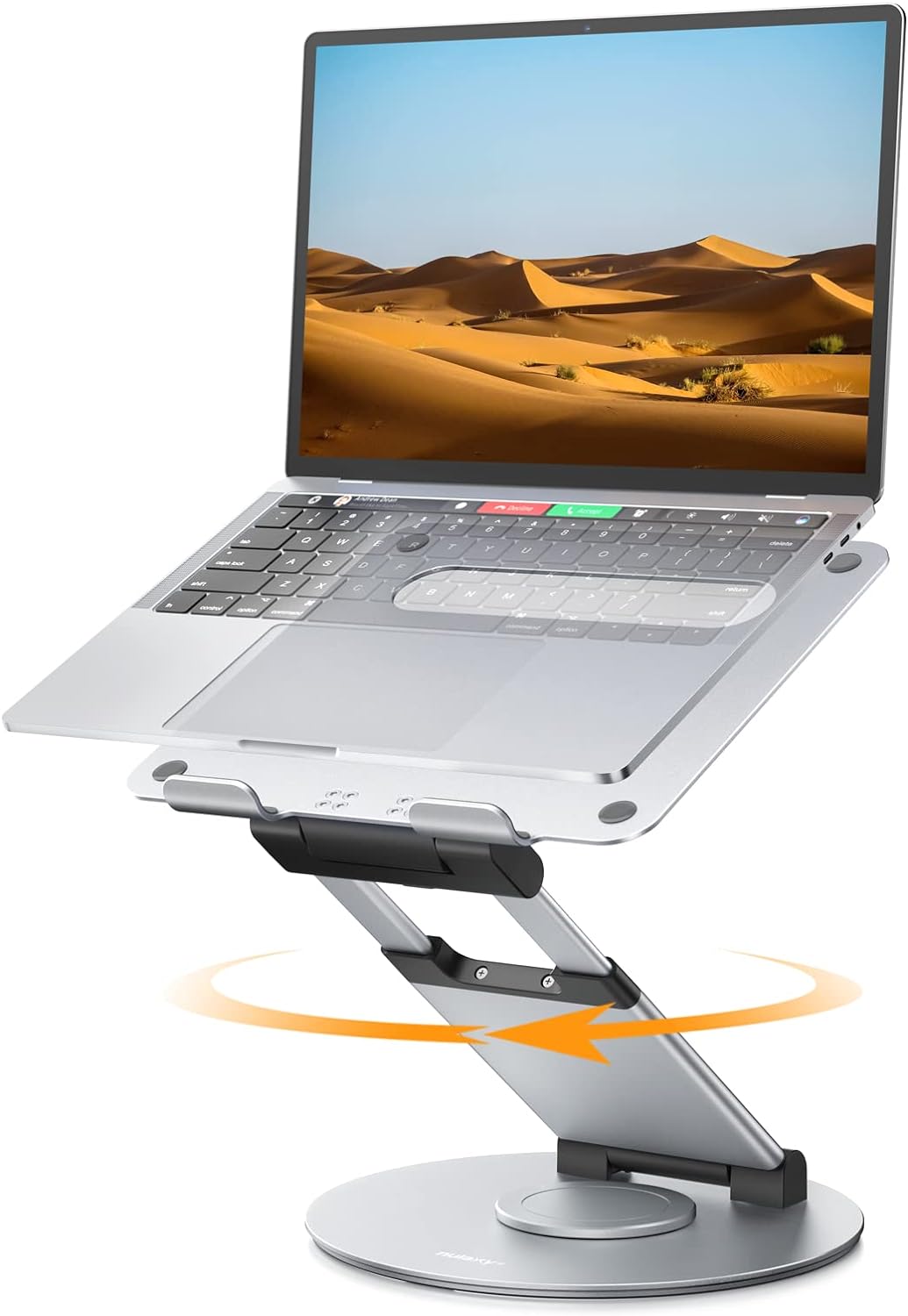
Laptop Stand vs Monitor Stand: Which Do You Need?
Choose the right stand for your device, screen height, desk space, and single- or dual-screen workstation.
Quick answer: A laptop stand supports your laptop and can raise its screen for more comfortable viewing. A monitor stand raises an external monitor, either by supporting its base on a platform or by attaching to a compatible mounting arm.
If you mainly work on a laptop, start with a laptop stand. If you use a separate monitor, choose a monitor stand that fits its size, weight, and mounting design. If you use both screens together, you may benefit from both types.
Desk Organization
Dual-Monitor Setups
In This Guide
Laptop Stand vs Monitor Stand: Main Differences
The biggest difference is the device each stand is designed to support. Laptop stands are built around the dimensions and shape of a laptop. Monitor stands are designed for an external display, with options ranging from simple raised platforms to adjustable arms that attach to a desk.
Although some products can serve more than one purpose, the terms are not interchangeable in every case. A stand that safely supports a lightweight laptop may not be suitable for a large monitor, and a monitor arm may not support a laptop without a compatible tray or attachment.
| Feature | Laptop Stand | Monitor Stand |
|---|---|---|
| Primary device | Laptop or notebook computer | External monitor or display |
| Typical design | Cradle, angled platform, folding stand, or adjustable support | Raised platform, monitor riser, desk clamp, or mounting arm |
| Typing setup | An external keyboard and mouse are often helpful when the laptop is elevated | Usually works with a separate keyboard and mouse |
| Desk footprint | Small models can be portable; larger platforms use more surface area | A platform occupies desk space; a compatible arm can free up space beneath the screen |
| Height adjustment | Depends on the model; some are fixed-height, while others adjust | Depends on the design; adjustable arms generally offer more positioning flexibility |
| Best use case | Raising a laptop screen for desk work or travel | Positioning a dedicated display in a fixed or adjustable workstation |
Important: Neither type automatically improves posture. The screen needs to be positioned appropriately for your body, and the keyboard and mouse should allow a comfortable arm and wrist position.
When Should You Choose a Laptop Stand?
A laptop stand makes sense when your laptop is your main computer and you want to raise its display without replacing the device. It can be useful in a home office, a shared workspace, or a compact desk where a desktop monitor is not practical.
1. You work primarily on a laptop
If you use a laptop for long work sessions, raising the screen may help you avoid repeatedly looking down. For a more comfortable setup, pair the elevated laptop with an external keyboard and mouse rather than reaching up to type on the laptop’s own keyboard.
2. You need a portable or compact setup
Folding laptop stands are useful for people who move between home, an office, and shared workspaces. Some designs fit into a laptop bag, while heavier wooden or desktop models are better suited to a permanent desk.
3. You want to improve desk organization
A laptop stand can create more usable space underneath the device, depending on its shape. If your main goal is to store a closed laptop vertically while using an external monitor, however, a vertical laptop holder may be a better fit than a raised platform.
Explore our related guides:
- Laptop Stand vs Laptop Riser: What’s the Difference?
- Best Wooden Laptop Stands for Home Offices
- Best Vertical Laptop Stands for Desk Organization
When Should You Choose a Monitor Stand?
A monitor stand is the more natural choice when you use a separate desktop display. It raises the monitor to a more suitable viewing position and can help organize a desk that includes a keyboard, mouse, docking station, and other accessories.
1. Your external monitor sits too low
If the display is positioned too low for your preferred viewing posture, a monitor riser or adjustable monitor arm may help. The right height depends on the monitor, your chair and desk, and your seated position. A larger riser is not automatically better if it pushes the screen too high.
2. You want more space under the display
A monitor riser with open space underneath can hold small accessories, a keyboard, or a notebook when they are not in use. A desk-mounted monitor arm can free up even more surface area because it does not require a full platform beneath the screen.
3. You frequently change your viewing position
An adjustable monitor arm can make it easier to move a display closer, farther away, higher, or lower. Some arms also support rotation, tilt, and portrait orientation. Check the model’s supported screen size, weight range, and mounting requirements before buying.
Two common types of monitor stands
Monitor riser: A platform that supports the monitor’s existing base. It is often straightforward to set up and does not necessarily require VESA mounting holes.
Monitor arm: A movable support that typically attaches to a desk or another approved mounting point. Many models require a compatible VESA pattern and a desk that can safely accommodate the clamp or mounting hardware.
Desk Space and Dual-Screen Layouts
The best choice also depends on how many screens you use and how much room is available on your desk. Think about where the laptop, monitor, keyboard, mouse, and everyday accessories will sit before choosing a stand.
| Your Setup | What to Consider | Why It Works |
|---|---|---|
| Laptop only | Compact or adjustable laptop stand | Raises the laptop screen without adding a separate display |
| External monitor only | Monitor riser or compatible monitor arm | Supports a dedicated screen and can improve desk layout |
| Laptop plus external monitor | Laptop stand and monitor stand or arm | Allows both screens to be positioned for a dual-screen workflow |
| Closed laptop with external monitor | Vertical laptop holder and monitor stand or arm | Keeps the laptop off the main work surface while the monitor is in use |
| Small or shallow desk | Compact riser or desk-compatible monitor arm | Helps preserve room for typing and everyday tasks |
Should both screens be at the same height?
Not necessarily. Aim for a comfortable viewing position for the screen you use most. If you frequently switch between a laptop and an external monitor, positioning them at similar viewing heights may reduce repeated head movement, but the ideal arrangement depends on their sizes, your seating position, and how often you use each display.
For a two-screen setup, place the primary display directly in front of you. Position a secondary screen nearby at a comfortable angle rather than repeatedly twisting your neck to view it. If you use the laptop as a secondary screen, make sure the stand does not block ports or interfere with cooling.
Compatibility and Stability: What to Check Before Buying
A stand may look suitable in product photos but still be a poor fit for your equipment. Check the following details before ordering.
Device Size
Compare the stand’s usable platform or support range with your laptop’s dimensions or monitor base.
Weight Capacity
Confirm that the stand supports the complete device and any accessories placed on it.
Mounting Compatibility
For a monitor arm, verify VESA compatibility where required, weight limits, and desk-clamp clearance.
Stability and Grip
Look for secure contact points, non-slip pads, a stable base, and adjustment mechanisms that hold position.
Ventilation and Ports
For laptops, check airflow and access to charging ports, USB ports, and cables.
Desk Measurements
Measure available depth and width, and check that the stand will not obstruct drawers or desk accessories.
Laptop Stand vs Monitor Stand: Which Should You Buy?
The right option depends on your current equipment and how you work. Use these recommendations as a starting point rather than choosing based on the product name alone.
Choose a Laptop Stand If…
Your laptop is your primary screen, you want to elevate it, or you need a compact and portable workstation accessory.
Choose a Monitor Stand If…
You use a separate monitor and need to raise it, organize the desk beneath it, or adjust its position more precisely.
Consider Both If…
You regularly work with a laptop and an external monitor, or you want to use a closed laptop alongside a separate display.
If your main goal is a tidy workstation rather than raising the screen, consider whether a vertical laptop holder is more appropriate. For more workspace ideas, visit the SitBetterLab Workspace guides.
Frequently Asked Questions
Can I use a laptop stand as a monitor stand?
Sometimes, but only if the stand is designed to safely support the monitor’s size, weight, and base. Laptop stands are not automatically suitable for larger external displays. Check the manufacturer’s load rating and supported dimensions before using one with a monitor.
Do I need a laptop stand if I already have a monitor stand?
Not necessarily. If you mainly use your external monitor and keep the laptop closed or stored vertically, you may not need a second raised platform. If you use both screens, a separate laptop stand can help position the laptop display more comfortably.
Which stand saves more desk space?
It depends on the design. A monitor riser may provide storage space underneath, while a monitor arm can leave more of the desk surface open. A compact laptop stand may take up little room, but a large platform can occupy more space than expected.
Are monitor arms better than monitor risers?
Monitor arms generally offer more flexibility for adjusting screen position and can free up desk surface area. Monitor risers are often simpler to install and may offer a platform for accessories. Choose based on your monitor’s compatibility, your desk construction, and how often you reposition the screen.
Should I use an external keyboard with a laptop stand?
If the stand raises the laptop screen significantly, an external keyboard and mouse are usually the more comfortable arrangement. This lets you position the screen separately from your hands, rather than reaching up to type on an elevated laptop keyboard.
How do I know whether my monitor supports a monitor arm?
Check the monitor’s manual or specifications for VESA mounting support and the required hole pattern. Also confirm that the arm supports the monitor’s weight and dimensions. Some monitors require a model-specific adapter, and some cannot be mounted using a standard VESA plate.
Build a More Comfortable Workspace
Start with the device you use most, measure your desk, and choose a stand that fits your screen, equipment, and working position.
Disclosure: SitBetterLab may earn a commission from qualifying purchases made through links in this article, at no additional cost to you.