
Laptop Stand Height Guide: How High Should Your Laptop Be?
Learn how to position your laptop screen, measure the right stand height, and build a more comfortable desk setup for everyday work.
If you spend hours working on a laptop, the screen’s position can make a noticeable difference to your workstation comfort. A laptop placed flat on a desk often encourages you to look downward. Raising the screen can help you maintain a more neutral head position, but setting it too high or too low can create a different problem.
So, how high should a laptop stand be? There is no single height that suits everyone. The ideal position depends on your seated eye level, laptop screen size, viewing distance, chair, desk, and whether you use an external keyboard and mouse.
This guide explains how to find a practical starting height, measure your setup, adjust your screen, and avoid common mistakes. The goal is not to follow a rigid measurement. It is to create a position that lets you view the screen comfortably while keeping your shoulders relaxed.
The Short Answer
- Start with the top of the display at or slightly below eye level, then adjust for comfortable viewing.
- Keep the screen directly in front of you rather than off to one side.
- Position the screen far enough away that you can read without leaning forward.
- Use an external keyboard and mouse when the laptop is raised for extended work.
- Recheck the setup after changing your chair, desk, or monitor arrangement.
What Is the Ideal Laptop Stand Height?
The right laptop stand height is the height that puts the display in a comfortable viewing position for your body and screen. A useful starting point is to position the upper part of the display around eye level or a little below it. You should be able to read the screen without repeatedly bending your neck forward or tilting your head upward.
However, screen design matters. On a large laptop, the top edge may sit comfortably near eye level while the center of the display is slightly lower. On a small laptop, raising the top edge to exactly eye level may create an awkward angle. Use the screen’s overall position and your natural viewing posture rather than treating one measurement as a universal rule.
Signs Your Screen Height Is Close to Right
- Your head feels balanced rather than consistently tilted down or back.
- You can read text without leaning your upper body toward the screen.
- Your shoulders remain relaxed while you work.
- You can see the full display without repeatedly changing your neck position.
- Your keyboard and mouse remain low enough for comfortable arm positioning.
How to Measure Your Laptop Stand Height
Instead of buying a stand based only on its advertised height, measure your current workstation first. This gives you a more useful estimate of how much lift you may need.
Step 1: Sit in Your Normal Working Position
Adjust your chair and sit as you normally would during work. Keep your feet supported, your shoulders relaxed, and your back in a comfortable position. Avoid stretching your neck upward just to estimate eye level.
Step 2: Measure Your Seated Eye Height
Ask someone to measure from the desktop to your eye level while you sit naturally, or use a vertical ruler or tape measure carefully. Record the measurement in inches or centimeters. This is a reference point, not a mandatory screen-top measurement.
Step 3: Measure Your Laptop’s Screen Position
Place your laptop on the desk and measure the height of the top edge of its display from the desktop. Open the screen to the angle you normally use, because changing the lid angle also changes the position of the display’s upper edge.
Step 4: Estimate the Required Lift
Compare your seated eye height with the height of the screen’s top edge. The difference provides a rough starting estimate for how much elevation to try. You may need less lift if the display already sits close to your preferred viewing position.
A Simple Example
Suppose your seated eye level is 47 inches above the floor and your desk is 29 inches high. Your eye level is therefore 18 inches above the desktop.
If the top of your laptop display is currently 10 inches above the desktop, it is about 8 inches below your eye level.
That 8-inch difference is a reference for testing, not a requirement to raise the display by exactly 8 inches. Adjust the screen gradually and check whether the resulting viewing angle feels natural.
Laptop Stand Height Calculator
Use this simple calculator to estimate the difference between your seated eye level and the top edge of your laptop screen. Enter all measurements in the same unit.
This calculator compares two vertical measurements only. It does not determine a medically prescribed position or account for viewing distance, screen size, or individual needs.
Does Laptop Screen Size Affect Stand Height?
Yes. Screen size and aspect ratio affect how much vertical space the display occupies. A larger laptop screen generally extends farther vertically than a smaller one, assuming similar proportions. As a result, the same stand height can place the top edge of two different laptop screens at different positions.
For that reason, do not choose a stand based only on your laptop’s screen size. Consider the laptop’s base dimensions, display height, weight, and the amount of lift needed for your desk. A stand with several adjustment positions can make it easier to fine-tune the setup.
| Laptop Type | What to Consider | Stand Feature to Check |
|---|---|---|
| Compact laptop | A smaller display may need a different viewing distance or scaling setting. | Fine adjustment and secure support points |
| Standard laptop | Balance screen height with desk space and keyboard placement. | Useful height range and stable hinges |
| Large laptop | The laptop may be heavier and take up more room. | Adequate weight rating and a wide support area |
| Laptop with external monitor | The laptop screen may serve as a secondary display. | Adjustment that aligns the two displays sensibly |
How to Choose a Stand with the Right Adjustment Range
Once you have an estimate of your desired screen position, compare stand designs. A stand that raises a laptop only slightly may be sufficient for one setup but not another. The important factor is whether the model can reach a comfortable position on your actual desk.
Fixed-Height Laptop Risers
A fixed riser provides a set screen height. It can be a simple option if your chair and desk do not change and the riser’s height suits your viewing position. However, it offers less flexibility if you share a desk or change your working posture frequently.
Adjustable Laptop Stands
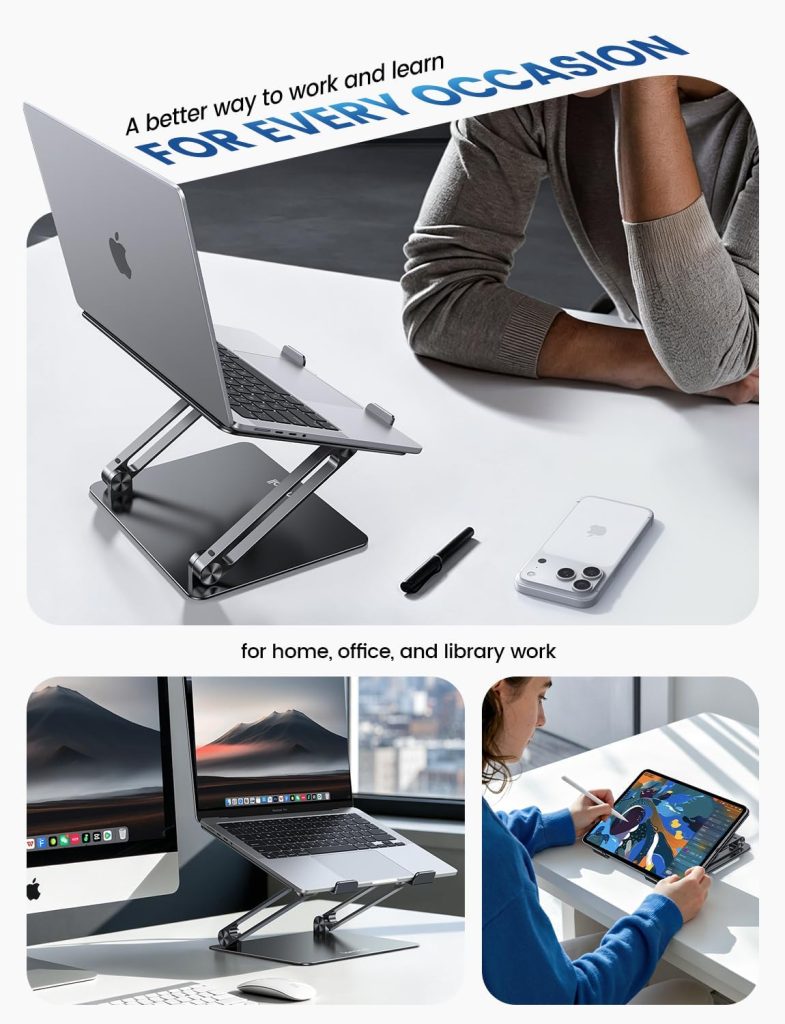
An adjustable model lets you change the height or angle within its supported range. This can be useful if you are still finding the right position or if several people use the same workstation. Check that the stand remains stable at the height you plan to use most often.
Tall Laptop Mounts
A taller laptop mount can provide more vertical adjustment than a compact riser. It may suit a workstation where the laptop needs to sit alongside an external monitor or where the desk setup requires a higher display position. Check the footprint, adjustment mechanism, and supported load before buying.
For product recommendations, see our guide to the best adjustable laptop stands. If you need a compact model for mobile work, explore our portable laptop stands for travel and remote work.
Why an External Keyboard and Mouse Matter
Raising a laptop display also raises the built-in keyboard and touchpad. If you continue typing on the elevated laptop, your hands may end up higher than is comfortable for extended work. A stand is therefore most useful as part of a complete workstation rather than as an isolated accessory.
A More Flexible Laptop Setup
- Raise the laptop display to a comfortable viewing position.
- Place an external keyboard in front of you at a comfortable height.
- Keep the mouse close to the keyboard so you do not need to reach repeatedly.
- Keep your shoulders relaxed and elbows close to your body.
- Take regular movement breaks rather than staying in one position for the entire day.
Read our ergonomic desk setup guide for more ways to organize your screen, keyboard, and workspace.
Common Laptop Stand Height Mistakes
1. Raising the Screen Too High
Higher is not always better. If you need to tilt your head backward to see the screen comfortably, lower the stand or adjust the display angle. Aim for a relaxed viewing posture rather than matching an arbitrary height.
2. Ignoring Viewing Distance
A screen at a good height may still be uncomfortable if it is too close or too far away. Position the laptop so you can read the content without leaning forward. Adjust text scaling if necessary instead of automatically moving the screen closer.
3. Using the Built-In Keyboard at an Awkward Height
When the display is elevated, the keyboard may no longer be in a comfortable typing position. Use an external keyboard when practical, especially during long work sessions.
4. Buying a Stand Without Measuring the Desk
Some stands have broad bases or need extra clearance to adjust. Measure your desk and check the product dimensions before buying, particularly if you already use a monitor, keyboard, mouse, and other accessories.
5. Expecting a Stand to Fix Every Discomfort
A laptop stand can help change screen position, but it cannot guarantee that a workstation will feel comfortable for every person. Chair fit, desk height, lighting, viewing distance, workload, and movement habits all matter. Persistent pain or symptoms should not be ignored.
Frequently Asked Questions
Should the top of my laptop screen be at eye level?
The top edge of the screen is a useful starting reference, often around eye level or slightly below. The best position depends on screen size, viewing angle, and your natural head posture. Adjust the display so you can read comfortably without repeatedly bending your neck or tilting your head upward.
How many inches should a laptop stand raise a laptop?
There is no universal lift amount. The required height depends on the current screen position, your seated eye level, and the laptop’s display dimensions. Measure your setup and use an adjustable stand to test a comfortable position rather than choosing a fixed lift based on a general recommendation.
Is a laptop stand necessary for working from home?
Not everyone needs one, but a stand can be useful if your laptop screen sits too low for comfortable viewing. It is particularly helpful when combined with a separate keyboard and mouse, which allow the screen and typing position to be adjusted independently.
Can I use books instead of a laptop stand?
A stable stack of books can provide a temporary lift, but it may not offer secure support, ventilation clearance, or convenient height adjustment. Make sure the laptop cannot slide or tip and that vents are not blocked. A purpose-built stand is generally easier to adjust and secure.
Does a laptop stand help with neck discomfort?
Raising the display may help reduce the need to look downward, but it does not guarantee relief from neck discomfort. Screen distance, chair and desk setup, work duration, and movement habits also matter. If discomfort persists or worsens, consider seeking advice from an appropriate healthcare professional.
Should I raise my laptop when using an external monitor?
It depends on how you use the two displays. If the laptop acts as a secondary screen, raising it can make the displays easier to arrange. Position the primary display directly in front of you and avoid repeatedly turning your neck toward a screen that you use most often.
Final Takeaway
The right laptop stand height is not a fixed number. Start by measuring your seated eye level and the current position of your laptop screen, then raise the display gradually until you can view it comfortably. Consider screen size, viewing distance, desk space, and the position of your keyboard and mouse before settling on a final setup.
If you need flexibility, an adjustable stand can help you fine-tune the screen position. If you already know the height that works for you, a simpler fixed riser may be sufficient. Either way, use the laptop stand as one part of a complete workstation and change positions regularly throughout the day.
Related SitBetterLab Guides
Disclosure: This article is for general informational purposes and is not a substitute for individualized ergonomic or medical advice. SitBetterLab may earn a commission from qualifying purchases made through links on this site, at no additional cost to you.