
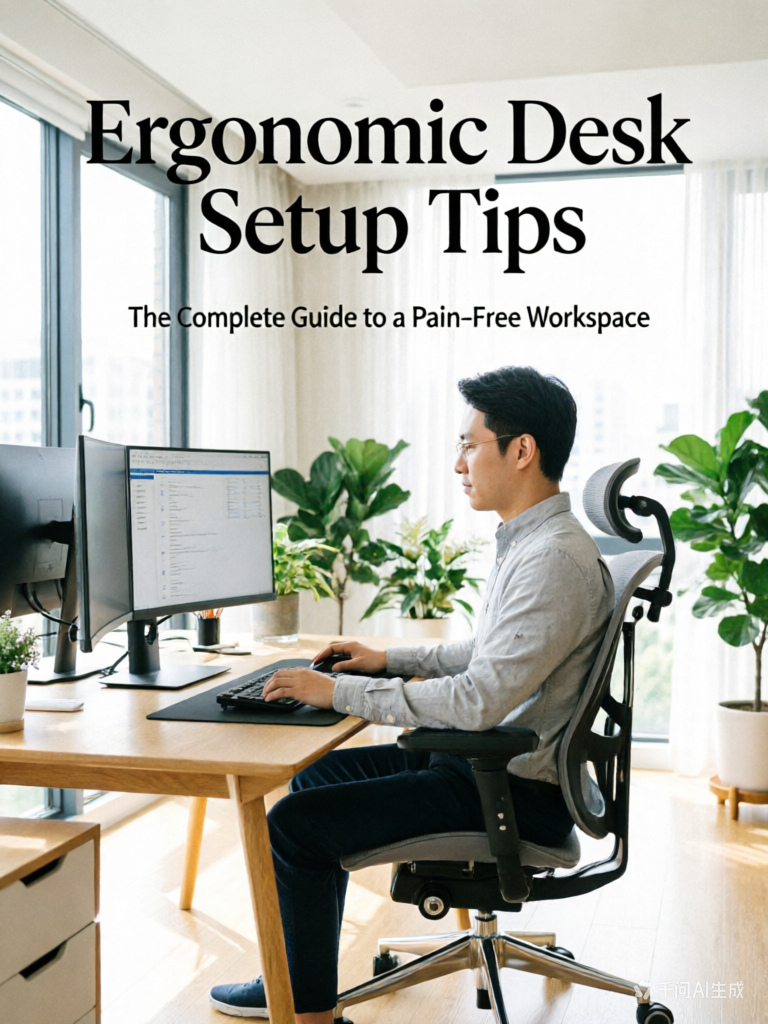
Do you end each workday with a sore neck, aching back, or numb wrists? You are not alone. Millions of people suffer from poor workstation setups that slowly damage their bodies. The good news is that you do not need an expensive overhaul. With a few science‑backed adjustments, you can transform your desk into a productivity‑boosting, pain‑preventing ergonomic workspace.
In this guide, I will walk you through 13 actionable ergonomic desk setup tips — from monitor height to chair adjustments, keyboard placement to lighting. Whether you work from home or in an office, these changes will help you sit healthier, move more, and work better.
Quick Ergonomic Checklist (Do This First)
Before we dive into details, here is a one‑minute checklist to assess your current setup:
- ✅ Are your feet flat on the floor (or on a footrest)?
- ✅ Are your thighs parallel to the floor (or slightly angled down)?
- ✅ Is there 2–3 fingers of space between the back of your knee and the seat edge?
- ✅ Does your lower back feel supported (not arched or flattened)?
- ✅ Are your elbows at 90° with wrists straight and hands hovering over the keyboard?
- ✅ Is the top of your monitor at or slightly below eye level?
- ✅ Are you looking straight ahead without tilting your neck up or down?
If you answered “no” to any of these, keep reading for detailed solutions.
1. Start with Your Chair – The Foundation of Good Posture
Your chair is the most important piece of your ergonomic setup. A bad chair cannot be fixed by any other adjustment. Here is how to set it up correctly.
Seat Height
Adjust your chair so your feet rest flat on the floor and your thighs are parallel to the ground (or slightly angled down). If your feet dangle, use a footrest. If your knees are higher than your hips, lower the seat. This reduces pressure on your lower back and improves circulation.
Seat Depth
When sitting all the way back, you should have 2–3 fingers of space between the back of your knee and the front edge of the seat. If the seat is too deep, it presses into your knees and forces you to slouch forward, losing lumbar support. If your chair does not have adjustable seat depth, add a lumbar cushion to push your body forward slightly.
Lumbar Support
Your lower back has a natural inward curve. The chair’s lumbar support should fill that curve exactly — typically 1–3 inches above the seat pan. If the support is too high, it will hit your mid‑back. Too low, and it will press on your tailbone. Adjust or add a lumbar pillow until you feel gentle, even pressure.
Armrests
Lower your armrests so your shoulders stay relaxed (not shrugged). With elbows at 90°, your forearms should rest lightly on the armrests while keeping your wrists straight over the keyboard. If armrests are too high, they will force your shoulders up; too low, and you will lean to one side.
Pro tip: If your chair lacks adjustment, remove fixed armrests entirely — they often cause more harm than good when positioned incorrectly.
2. Position Your Keyboard and Mouse Correctly
Improper keyboard and mouse placement is a leading cause of carpal tunnel syndrome, tennis elbow, and shoulder pain.
Keyboard Height and Angle
Place your keyboard directly in front of you, not off to one side. Your elbows should be at 90–100° and wrists should be straight (not bent up or down). Use a keyboard tray or lower your desk if needed. For most people, the keyboard should be just above lap level (28–30 inches from the floor for average height).
Negative tilt keyboards (where the front edge is higher than the back) keep wrists neutral. If your keyboard has flip‑out feet, consider not using them — flat or slightly negative tilt is better.
Keyboard Shortcuts to Reduce Mouse Use
Every time you reach for your mouse, you move your shoulder out of alignment. Learn keyboard shortcuts (Ctrl+C, Ctrl+V, Alt+Tab, etc.) to minimize mouse reaching.
Mouse Position
Place your mouse as close to the keyboard as possible — ideally within 6 inches. Avoid reaching forward or sideways. Your wrist should stay straight, not bent left or right. Consider a vertical mouse to keep your forearm rotated into a more natural handshake position.
3. Monitor Height and Distance – Save Your Neck
One of the most common ergonomic mistakes is placing the monitor too low or off to the side. This forces you to crane your neck for hours.
Height – Top at Eye Level
The top of your monitor should be at or slightly below eye level. Your gaze should naturally fall 15–20 degrees below horizontal to the center of the screen. This keeps your neck in a neutral, relaxed position. If your monitor is too low, use a riser, stack books, or buy an adjustable monitor arm.
Distance – Arm’s Length Away
Sit back in your chair and extend your arm. Your fingertips should just touch the screen. If you need to lean forward to see clearly, increase font size, not head position. For larger monitors (27″ +), push them slightly further back.
Dual or Triple Monitors
If you use multiple monitors, place your primary monitor directly in front of you. Secondary monitors should be adjacent (not angled sharply) and at the same height. Avoid constant neck rotation; instead, rotate your chair to face the secondary monitor temporarily.
4. Lighting and Glare – Reduce Eye Strain
Digital eye strain (computer vision syndrome) affects 50–90% of computer workers. Improper lighting is a major cause.
Eliminate Glare from Windows and Overhead Lights
Position your desk so windows are to your side (not in front or behind you). Light from behind creates glare on the screen. Light from in front creates harsh shadows. Use blinds or curtains to control brightness.
Overhead fluorescent lights often flicker and create harsh reflections. Replace with indirect LED lighting or desk lamps with warm white bulbs to reduce glare.
16‑20‑20 Rule for Eye Breaks
Every 20 minutes, look at something 20 feet away for 20 seconds. This relaxes the focusing muscle inside your eye.
5. Footrests and Standing Desks – Add Movement
No single posture is perfect for 8 hours. The key is movement and alternation.
Footrests for Short Users or Improper Chairs
If your feet do not rest flat on the floor, use a footrest (or a sturdy box). Dangling feet tilt your pelvis backward, flattening your lower back and causing pain. A footrest keeps your pelvis neutral.
Standing Desks – Sit‑Stand Ratio
Standing desks are excellent, but standing all day is as bad as sitting all day. Aim for a 1:1 or 2:1 sit‑stand ratio. For example: sit 50 minutes, stand 25 minutes, then sit again. Adjust gradually to avoid leg fatigue.
How to Stand Correctly at a Standing Desk
- Keep your monitor at the same height as when sitting (top at eye level)
- Slightly bend your knees – never lock them
- Shift weight between feet or use an anti‑fatigue mat
- Wear supportive shoes – barefoot is not recommended for long standing
6. Document Holder – Type Without Looking Down
If you frequently reference paper documents, do not lay them flat on your desk. This forces your neck to look down repeatedly. Use an adjustable document holder placed between your monitor and keyboard at the same height as the screen.
7. Desk Height – The Forgotten Adjustment
Many people adjust their chair, arms, and monitor but forget about desk height. Here is the test:
- Sit in your properly adjusted chair.
- Place your hands on the keyboard in typing position.
- Your elbows should be at 90–100°.
- If your desk is too high, your shoulders will shrug up. Lower it or raise your chair (and use a footrest).
- If your desk is too low, you will slouch forward. Raise it with risers or use a standing desk.
For a fixed‑height desk, aim for 28–30 inches for average height. Short users may need 24–26 inches; tall users 30–32 inches.
8. Take Breaks and Stretch – The Most Overlooked “Ergonomic Tip”
No matter how perfect your setup, you cannot sit in one position for 8 hours. Your spine craves movement.
The 30‑30‑30 Rule
- Every 30 minutes: Stand up and stretch for 30 seconds.
- Every 3 hours: Take a 5–10 minute walk.
- Set a timer on your phone or use an app (Stretchly, Stand Up!, etc.).
Simple Desk Stretches for Back Pain
- Seated cat‑cow: Round and arch your lower back while sitting.
- Neck tilts: Gently bring your ear toward your shoulder (no pushing).
- Shoulder rolls: Roll shoulders backward 10 times to relieve tension.
- Wrist flexor stretch: Extend arm, palm up, pull fingers back gently.
9. Desk Accessories That Help (and Ones That Hurt)
Helpful accessories:
- Footrest – keeps feet flat, pelvis neutral.
- Lumbar pillow – fills the gap in chairs with no adjustable lumbar.
- Keyboard tray – frees up desk space, allows negative tilt, and keeps wrists straight.
- Monitor arm – infinite height, tilt, and rotation adjustment.
- Anti‑fatigue mat – reduces leg pain when standing.
Hurtful accessories (avoid or modify):
- Gel or foam wrist rests – they should be used while resting, not while typing. They compress the carpal tunnel if you type while leaning on them.
- Low‑quality ergonomic “gaming” chairs – many have fake lumbar pillows that do not stay in place.
- Magnetic phone holder on the monitor – forces your neck to rotate left/right constantly.
10. Laptop Users – The Most High‑Risk Setup
Laptops are ergonomic nightmares because the screen and keyboard are attached. If you use a laptop daily, follow these rules:
- Never work more than 30 minutes on just the laptop screen and keyboard. You will hunch forward and crane your neck.
- Use a separate monitor and external keyboard. Raise the laptop screen to eye level (using a stand) and place the external keyboard at proper height.
- If you cannot use an external monitor, raise the laptop on a stack of books so the top is at eye level, and use a separate keyboard and mouse.
The most common laptop injury is “toe” neck – tilting the head back to read the low screen. Avoid it.
11. Ergonomic Keyboard vs. Standard – Do You Need One?
If you already have wrist pain or have been typing for years, an ergonomic keyboard can help. The two main types:
- Split keyboard: Separates the halves, letting you angle them to match your natural shoulder width.
- Contoured keyboard: Raises the center, keeping wrists in a more neutral “handshake” position.
If you do not have pain, a standard keyboard placed at the correct height and flat (no positive tilt) is usually fine. The adjustment matters more than the hardware.
12. Eye Care – Reduce Fatigue and Headaches
Beyond lighting, several simple habits reduce eye strain:
- Adjust screen brightness to match the ambient light. The screen should not look like a light bulb in a dark room.
- Enable night mode / blue light filter in the evening to reduce circadian disruption.
- Blink ! People blink 66% less when staring at screens. Use lubricating drops if needed.
- Use matte screen protectors to eliminate reflections.
13. Common Mistakes to Avoid
Even experienced remote workers make these mistakes. Check yourself against this list:
- ❌ Sitting on your wallet – removes it from your back pocket. It tilts your pelvis.
- ❌ Crossing your legs for long periods – reduces circulation and twists your spine.
- ❌ Reaching for the mouse off to the side – keep it within 6 inches of the keyboard.
- ❌ Placing your monitor at an angle – always have the center of the screen directly in front.
- ❌ Using a laptop on your bed or couch – the worst possible position for your neck and back.
- ❌ Tilting your head to hold the phone between ear and shoulder – use a headset.
Frequently Asked Questions (FAQ)
What is the best ergonomic desk setup for back pain?
Start with a chair that has adjustable lumbar support and proper seat depth. Set your monitor height so the top is at eye level. Keep your keyboard low so your elbows are 90°. Take movement breaks every 30 minutes.
How high should my desk be for ergonomics?
When seated, your elbows at 90° should hover just above the keyboard. For most average‑height people, a desk height of 28–30 inches works. If using a chair with tall cylinder, the desk may need to be lower. Use a keyboard tray if your desk is fixed too high.
Is a footrest necessary?
If your feet do not rest flat on the floor after adjusting the chair, yes. Dangling feet tilt your pelvis backward, flattening your lower back and causing pain. A footrest also reduces pressure behind the knees.
Should I use a wrist rest while typing?
No. A wrist rest is for resting, not for typing. While typing, your wrists should float above the keyboard. Resting your wrists on a pad while typing compresses the carpal tunnel and can cause pain.
How do I know if my monitor is at the correct height?
Look straight ahead. Your eyes should naturally land on the top of the screen (not the center). You should not tilt your neck up or down.
Do standing desks really help?
Yes, when used correctly. Alternating between sitting and standing reduces static spinal loading, improves circulation, and burns more calories. But standing all day is just as bad as sitting all day. Use a 1:1 or 2:1 sit‑stand ratio.
Can I fix my setup without buying new equipment?
Absolutely. You can raise your laptop with books, use a box as a footrest, and adjust your existing chair settings. Many improvements cost nothing but a few minutes of your time.
Final Verdict: Small Changes, Big Results
You do not need a $5,000 standing desk or a $1,500 chair to work pain‑free. Most ergonomic desk setup tips cost nothing. Start with the foundation – your chair and monitor height – then build up your keyboard, mouse, and lighting.
The most important tip of all is movement. No setup is perfect if you sit motionless for eight hours. Set a timer, stretch, walk, and change positions frequently. Your body will thank you at the end of the week.
Related Articles
- Best Ergonomic Chair for Lower Back Pain
- How Should Lumbar Support Feel?
- Do Ergonomic Chairs Help Back Pain?
- What Is Seat Depth?
- Best Lumbar Support for Office Chair
Disclosure: This post contains affiliate links. If you purchase through our links, we may earn a commission at no extra cost to you. We only recommend products we have researched thoroughly.