
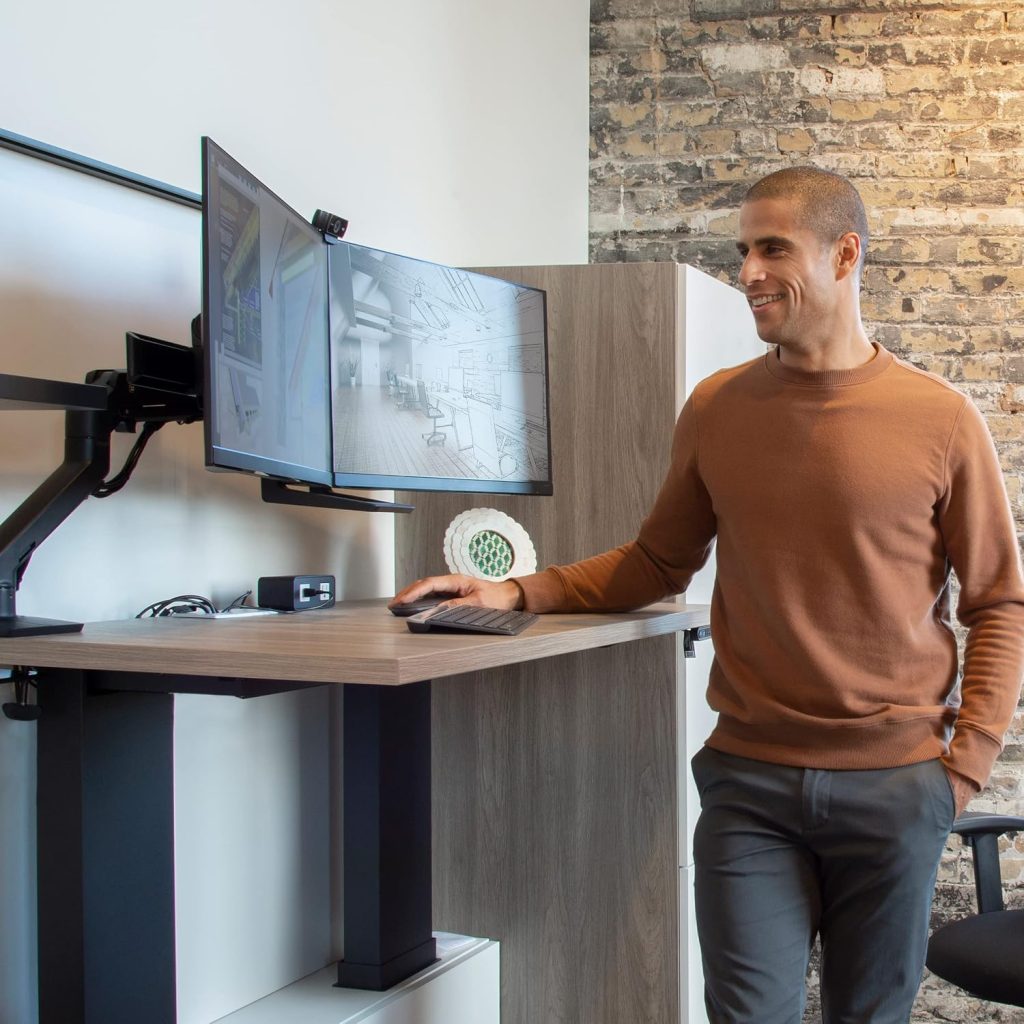
Best Dual Monitor Arms for 32-Inch Monitors
Compare dual monitor mounts for two large displays, including side-by-side arms, vertical mounting options, heavy-screen compatibility, and desk-clamp requirements.
Quick Answer
The best dual monitor arm for two 32-inch screens must support the weight of each monitor separately, provide enough reach for the combined screen width, and attach securely to your desk. Do not choose by screen size alone: two 32-inch monitors can have very different weights, depths, and mounting requirements.
- Premium option to compare: Ergotron HX Dual Monitor Arm
- Adjustable gas-spring option: HUANUO Dual Monitor Arm
- Budget option to compare: VIVO Dual Monitor Desk Mount
- For a fixed-height setup: Mount-It! Dual Monitor Desk Mount
- For a vertical arrangement: Mount-It! Vertical Dual Monitor Mount
These are product families to compare, not a guarantee that every model supports two 32-inch monitors. Confirm the exact model number, per-arm weight range, screen-size limit, and mounting specifications before purchasing.
Two 32-inch monitors can transform a workstation. You get plenty of room for spreadsheets, code, reference documents, creative applications, and video calls. The challenge is fitting both displays comfortably without allowing their stands and cables to take over the desk.
A dual monitor arm for 32-inch monitors can lift both displays off the desktop and help you align them at a consistent height. But large screens put more demands on a mount than smaller office monitors. Their weight, width, and leverage can expose limitations in a mount that looks suitable on paper.
This guide focuses on the compatibility details that matter when mounting two large displays: supported weight per arm, VESA mounting patterns, arm reach, desk stability, and screen arrangement. If you are still comparing mounting mechanisms or desk attachment types, start with our monitor arm buying guide.
Our Dual Monitor Arm Shortlist
| Product to Compare | Best Use | Mount Style | Main Check |
|---|---|---|---|
| Ergotron HX Dual | Premium large-screen setup | Articulating arms | Exact HX configuration and monitor compatibility |
| HUANUO Dual Monitor Arm | Adjustable side-by-side layout | Gas spring | Per-arm weight range and screen-size limit |
| VIVO Dual Monitor Desk Mount | Value-oriented setup | Model-dependent | Exact model’s screen and weight ratings |
| Mount-It! Dual Monitor Mount | Fixed or conventional positioning | Model-dependent | Arm reach and independent adjustment |
| Mount-It! Vertical Dual Mount | Stacked monitors | Vertical pole | Pole height, total load, and screen clearance |
The shortlist is a starting point for comparing designs. Product lines contain different revisions, so use the current manufacturer’s specifications and the exact retailer listing to verify compatibility rather than transferring a rating from one model to another.
1. Ergotron HX Dual Monitor Arm
For a carefully matched large-screen workstation
The Ergotron HX family is worth investigating when standard dual arms do not meet your monitors’ weight or positioning requirements. Be sure you are looking at a dual-monitor configuration intended for your specific displays.
Why consider it: Ergotron’s HX product family targets demanding monitor-mounting setups. For two large screens, a premium mount can be worth considering when you need a sturdy mounting system and precise positioning.
Best suited to: Users who have checked their monitor specifications and want to compare a premium solution rather than selecting a mount solely on price.
What to verify: The HX name covers configurations with different intended uses. Confirm the exact dual-arm arrangement, supported weight per display, monitor-size guidance, VESA compatibility, and required mounting hardware. Do not assume that a single-monitor HX configuration automatically supports two monitors.
Potential drawback: A premium mount may cost considerably more than a conventional dual-monitor arm. It can also be unnecessary if both displays are relatively light and rarely move.
Check Ergotron HX Dual on Amazon →
2. HUANUO Dual Monitor Arm
For users who frequently reposition their displays
HUANUO offers multiple dual-monitor mounts, including gas-spring designs. The key is finding a specific model that supports both of your 32-inch monitors.
Why consider it: Gas-spring arms can make it easier to adjust screen height, distance, and angle. This is useful if you change posture during the day or want to move a display aside for a particular task.
Best suited to: A side-by-side workstation where both displays need to move independently within the limits of the arm design.
What to verify: Check the minimum and maximum supported weight per arm. A mount may advertise compatibility with screens up to 32 inches but still be unsuitable for a particular heavy 32-inch display. Also check whether the product supports your VESA pattern and desk thickness.
Potential drawback: Two articulated arms need room to move. If your desk is shallow or close to a wall, the arms may not achieve the positions you expect.
Check HUANUO Dual Monitor Arms on Amazon →
3. VIVO Dual Monitor Desk Mount
For shoppers comparing straightforward dual-screen mounts
VIVO has a broad range of desk mounts, including dual-monitor products with different pole, arm, and adjustment designs.
Why consider it: A simpler dual mount can be a sensible choice if you want to remove both original monitor stands from the desktop and do not need to reposition the screens constantly.
Best suited to: Buyers who want to compare a value-focused setup and are willing to check the exact model’s capacity before ordering.
What to verify: Search results can include products intended for smaller displays. Confirm the maximum screen size, supported weight for each monitor, VESA pattern, and the type of height adjustment. If you have two 32-inch monitors, do not rely on the product name alone.
Potential drawback: Some pole-based designs offer less flexible positioning than articulated gas-spring arms. Measure the distance between the monitors and the desk edge to make sure the screens can sit comfortably.
Check VIVO Dual Monitor Mounts on Amazon →
4. Mount-It! Dual Monitor Desk Mount
For a setup that does not need constant repositioning
Mount-It! offers several monitor-mount configurations. Compare the particular dual model against your desk layout rather than assuming all products in the range have the same movement or capacity.
Why consider it: A conventional mount can be appropriate when you mostly need to set two screens at a suitable height and keep them there. Depending on the design, a pole-based system can also provide a relatively simple way to align both displays.
Best suited to: Productivity desks where the monitor arrangement is fairly stable from day to day.
What to verify: Check the exact model’s supported monitor weight, size, VESA pattern, mounting method, and height adjustment. Confirm that the arms can position both 32-inch screens without forcing them too far forward or leaving the edges awkwardly spaced.
Potential drawback: A fixed or pole-based design may offer fewer options for pulling one screen toward you or moving it out of the way. This matters if you frequently switch between tasks that use different displays.
Check Mount-It! Dual Monitor Mounts on Amazon →
5. Mount-It! Vertical Dual Monitor Mount
For a vertical rather than side-by-side layout
A vertical dual mount places one display above the other. This can reduce the desk width needed for two screens, although it requires enough vertical clearance.
Why consider it: Stacking two monitors can be useful when the desk is narrow but the workspace has adequate height. It can also suit workflows where one display is used for a main application and the other for reference material.
Best suited to: Users who specifically prefer a top-and-bottom arrangement and can position the upper display without making it uncomfortable to view.
What to verify: Check the supported weight for each mounting head, the total load allowed on the pole and base, the maximum monitor size, and the available vertical adjustment. Confirm that the screens can be stacked without their housings or stands interfering.
Potential drawback: The upper monitor can sit too high if the pole is short or the desk arrangement is poorly planned. A stacked layout is not automatically more ergonomic than placing screens side by side.
Check Vertical Dual Monitor Mounts on Amazon →
How to Choose a Dual Monitor Arm for Two 32-Inch Screens
1. Check the weight of each monitor without its stand
Weight is one of the most important compatibility checks. Find the manufacturer’s weight specification for each display without its original stand, then compare the figures with the mount’s per-arm load range.
Do not divide the mount’s advertised total capacity between the monitors unless the manufacturer explicitly defines the rating that way. Some listings state capacity per arm; others emphasize the total system load. You need to know which figure applies to each display.
Also check the minimum supported weight if you have a particularly light monitor. A spring-assisted arm may not remain in the intended position if the monitor is below its specified load range.
2. Confirm the VESA mounting pattern
Many monitor arms attach using a square pattern of mounting holes on the back of the display. Common patterns include 75 × 75 mm and 100 × 100 mm, but the actual pattern must be checked for each monitor.
If a display has no compatible mounting holes, you may need a suitable adapter. Make sure any adapter is approved for the monitor and mount, and account for any additional weight or clearance it introduces.
3. Check screen width and arm reach
Two 32-inch monitors take up considerable horizontal space when placed side by side. The diagonal measurement alone does not tell you how wide the monitors are, particularly when comparing different aspect ratios or curved displays.
Measure the actual width of each screen and plan the angle between them. If both monitors are angled toward you, their rear edges and mounting points may occupy a different amount of space than they would in a flat line.
Check the arm’s reach and pivot positions. A mount may support two screens on paper but still leave them too close together, too far apart, or too far forward for your desk.
4. Measure desktop thickness and underside clearance
Desk clamps need a suitable edge and enough space below the desktop for the clamp hardware. Measure the thickness where the mount will be installed, then compare it with the exact product’s supported range.
Check for drawers, crossbars, aprons, cable trays, and other obstructions. The desk must also be structurally suitable for the combined load and the leverage created by two extended monitors.
Do not overlook desk construction
A clamp that fits is not proof that the desk is strong enough. Be especially careful with glass, hollow-core, damaged, or fragile desktops. Follow the desk manufacturer’s guidance and the monitor-mount installation instructions; do not install a heavy dual mount on a surface that cannot safely support it.
5. Choose side-by-side or stacked mounting
A side-by-side arrangement works well when you have enough desk width and want both screens at roughly the same height. It is often convenient for comparing documents, keeping communication apps visible, or spreading work across two displays.
A stacked arrangement uses less horizontal space but needs more vertical room. Before choosing it, check the total screen height, the monitor’s vertical viewing position, and whether the upper display can be viewed comfortably without repeatedly tilting your head upward.
6. Decide whether you need gas-spring adjustment
Gas-spring arms can be convenient if you regularly move either screen. They can make it easier to change height and distance after being correctly adjusted for the monitor’s weight.
However, a spring mechanism is not automatically better for every setup. If the monitors will stay in fixed positions, a simpler mount may be adequate. Prioritize a compatible load range and stable positioning over features you are unlikely to use.
7. Account for desk movement and cable routing
If you use a sit-stand desk, check whether the clamp and arm are suitable for your desktop and intended movement. The monitors and cables should move without being pulled, snagged, or caught against a wall or shelf.
Leave enough cable slack around the joints and keep power and display cables secured without making them tight. Before raising or lowering the desk, verify that the screens clear nearby objects and that the cable bundle does not catch on the frame.
Is One Dual Arm Better Than Two Single Monitor Arms?
A dual arm uses one mounting point to support both monitors. Two independent single arms use separate mounting points and can provide more flexibility in how each screen is positioned.
| Consideration | One Dual Monitor Arm | Two Single Arms |
|---|---|---|
| Mounting points | Usually one | Usually two |
| Positioning flexibility | Depends on arm design and joint range | Each screen can be positioned independently |
| Desk compatibility | Requires a suitable location for a combined load | Requires two suitable mounting locations |
| Large or heavy screens | Must meet the dual system’s per-arm and total limits | Each arm can be selected for its own monitor |
Choose a dual arm when you want a unified mounting setup and the product is rated for both displays. Consider two single arms when the monitors have substantially different weights, you need more independent positioning, or a single dual mount cannot provide the reach you need.
Two separate mounts are not automatically safer. Both mounting points must be suitable, and the desktop must support the loads. Avoid installing clamps close together if doing so could weaken or overload a narrow section of the desk.
How to Position Two 32-Inch Monitors Comfortably
Once the hardware is compatible, arrange the displays around how you work rather than forcing yourself to sit in an awkward position.
- Choose a primary screen. Center the monitor you use most often in front of your normal sitting position.
- Angle the secondary display inward. A modest inward angle can reduce the need to turn your head repeatedly, depending on your layout.
- Align the screens. Keep their heights and angles reasonably consistent where practical, while prioritizing comfortable viewing.
- Check viewing distance. Large displays need enough distance for you to see the content comfortably without constantly moving your head.
- Manage the cables. Leave slack for the arms’ full range of movement and secure loose cables away from joints.
If one monitor is used mainly for occasional reference material, consider whether it needs to be directly in front of you at all times. A thoughtful layout can improve usability without requiring the most complicated or expensive arm.
Common Mistakes to Avoid
- Assuming every 32-inch monitor is supported. Screen size, weight, VESA pattern, and physical depth all affect compatibility.
- Reading total capacity as per-arm capacity. Check the precise meaning of the load rating.
- Ignoring minimum weight. Some spring arms are designed for a specific weight range and may not hold a lighter display correctly.
- Forgetting the desk edge and underside. Frames and drawers can prevent secure clamp installation.
- Underestimating combined screen width. Two large displays need enough room for the screens and their movement.
- Assuming a stronger arm fixes a weak desk. The desktop and mounting location must also be suitable for the load.
Frequently Asked Questions
Can one dual monitor arm hold two 32-inch monitors?
Yes, if the exact model is designed for that screen size and supports the weight of each monitor. Check the per-arm weight range, VESA pattern, screen-size guidance, and combined mounting requirements before purchasing.
What weight capacity do I need for two 32-inch monitors?
There is no universal capacity based on screen size alone. Look up each monitor’s weight without its stand and compare it with the minimum and maximum load range for the corresponding arm. Also follow the mount’s instructions for total load and installation.
Is a gas-spring dual monitor arm better than a fixed mount?
A gas-spring model can be more convenient if you regularly adjust screen height or position. A fixed or pole-based mount may be sufficient when both screens stay in place. The best choice depends on the adjustment range you need and whether the mount supports both monitors correctly.
Will a dual monitor arm work with two curved 32-inch monitors?
Possibly, but you should check more than the diagonal size. Curvature, housing depth, screen width, monitor weight, VESA placement, and the arms’ reach can affect the fit. Confirm the mount’s compatibility with your exact monitor models.
Should I use a vertical mount for two 32-inch monitors?
A vertical mount can save horizontal desk space, but it needs enough height to position both displays comfortably. Check the pole’s supported load and height range, and make sure the upper monitor will not sit too high for regular use.
Can I install a dual monitor arm on a standing desk?
Many desk-mounted arms can be used with compatible standing desks, but the desktop must support the clamp and the combined monitor load. Check the desk’s construction, mounting limits, frame clearance, and cable routing before installation.
Should I buy one dual arm or two single monitor arms?
A dual arm can simplify mounting by using one mounting point. Two single arms may offer more flexibility if your monitors have different weights or need different positioning. Compare the mounting requirements of both approaches with your actual desk layout.
Final Verdict
The best dual monitor arm for two 32-inch displays is the one that safely supports both screens while providing enough reach and adjustment for your workspace. A premium option such as the Ergotron HX Dual is worth comparing for demanding setups; HUANUO and VIVO offer other dual-mount product families to investigate, while Mount-It! has options for conventional and vertical layouts.
Before choosing a model, verify each monitor’s weight without its stand, VESA pattern, screen dimensions, and the arm’s minimum and maximum load. Then measure the desk thickness, underside clearance, and distance to the wall.
These checks matter more than choosing a product based on a broad “32-inch compatible” label. A well-matched mount can make a two-screen workstation more organized and comfortable without compromising stability.
Explore More Monitor Arm Guides
- How to Choose a Monitor Arm — understand weight capacity, VESA compatibility, and mounting types.
- Monitor Arm for Desk Setup — plan monitor placement and a more functional workstation.
- Best Monitor Arm for Small Desk — compare compact mounting options and desk-clearance considerations.
Disclosure: SitBetterLab may earn a commission from qualifying purchases made through affiliate links. Product availability, pricing, specifications, and included hardware can change. Verify the exact model’s specifications and follow the manufacturer’s installation instructions before purchasing or installing a monitor arm.