
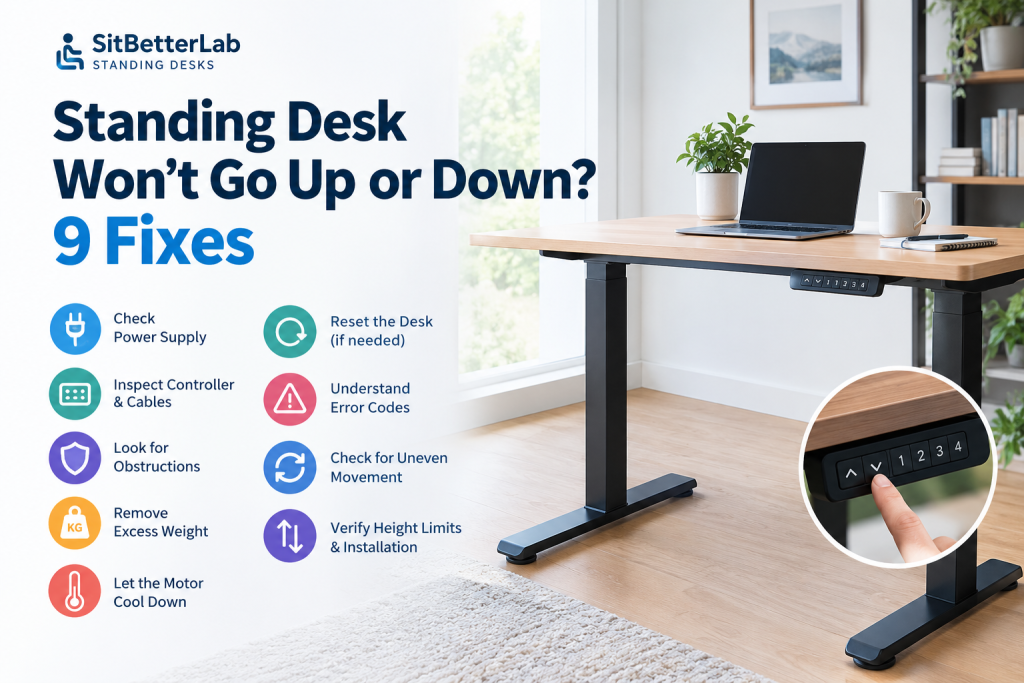
Standing Desk Troubleshooting Guide
How to Fix a Standing Desk That Won’t Go Up or Down
If your standing desk suddenly stops moving, the cause may be a loose power connection, a controller issue, an overloaded desktop, or a safety feature that has been triggered. Some problems can be resolved with simple checks, while others require model-specific troubleshooting or manufacturer support.
Start here
1. Check the power outlet and cable connections.
2. Check for obstructions and overloaded equipment.
3. Look for controller error codes and follow the manufacturer’s reset instructions.
Safety first: Keep hands and objects away from moving parts. If you see damaged wiring, smell burning, hear unusual grinding, or notice a bent frame, stop using the desk and contact the manufacturer or a qualified repair professional.
Why Is My Standing Desk Not Working?
An electric standing desk relies on several components working together: the power supply, control panel, motor system, lifting columns, and sometimes a control box with overload or anti-collision protection. A fault in any one of these components can prevent movement.
Before assuming the motor has failed, look at what the desk is doing. A completely unresponsive controller suggests a different problem from a desk that displays an error code, moves only one leg, or stops halfway through its travel.
Quick Troubleshooting Checklist
1. Check the Power Supply
If your standing desk does not respond at all, start with the power supply. A plug that has come loose or an outlet that is not working can make a functioning desk appear broken.
- Make sure the desk’s power cable is fully connected to the outlet and the designated power input.
- Check whether the outlet works by testing it with another suitable device.
- If you use a power strip, check its switch and reset protection, if applicable.
- Inspect accessible cables for visible damage without opening the control box or power supply.
- If the cable, plug, or outlet appears damaged, stop using it and arrange appropriate repair.
Disconnect the desk from power before reseating accessible connectors, following the manufacturer’s instructions. Do not open electrical enclosures or attempt to repair mains wiring yourself.
2. Inspect the Controller and Cable Connections
If the controller display is blank, flickering, or unresponsive even though the outlet works, the issue could involve the control panel, its cable, or the desk’s control box.
With the desk unplugged, check only the connectors that the user manual identifies as accessible and user-serviceable. Make sure they are seated correctly and that no cable is visibly pinched or pulled tight.
Reconnect the cables as instructed by the manufacturer, restore power, and test the desk using the normal controls. If the display remains blank or the same fault returns, do not repeatedly unplug and reconnect the system in an attempt to force it to work.
Some desks use different controller and control-box configurations, so connector layouts and replacement parts are not interchangeable across all brands.
3. Check for Obstructions and Collision Protection
Many electric standing desks include anti-collision protection. Depending on the model, the desk may stop or reverse if it detects resistance while moving.
Look around and beneath the desktop for:
- A chair, cabinet, drawer, or other object blocking the desk.
- Cables caught between the desk frame and nearby furniture.
- Items stored beneath the desk that interfere with the lifting columns.
- Accessories that collide with a wall or shelf when the desk moves.
Remove any obstruction, keeping your hands clear of pinch points. If your desk has adjustable anti-collision sensitivity, consult its manual before changing that setting. Never bypass a safety feature simply to make the desk move.
4. Remove Excess Weight From the Desktop
An overloaded desk may refuse to move, stop under load, or behave differently as it rises. The relevant limit is the manufacturer’s specified lifting capacity for your exact model, not the amount of weight the desktop looks capable of holding.
Temporarily remove nonessential equipment and accessories, particularly heavy monitors, speakers, desktop computers, and items mounted to the desk. Check whether the total load exceeds the model’s rated capacity and whether accessories have separate limits.
If the desk starts working after you reduce the load, redistribute the equipment and stay within the manufacturer’s limits. If it remains stuck, do not keep pressing the buttons or add force to the desktop.
5. Let the Motor Cool Down
Some standing desks have thermal protection that temporarily prevents operation after repeated adjustments or extended use. If your desk has been moving frequently, the motor system may need time to cool.
Stop operating the desk and allow it to rest for the period specified in the manual. Do not repeatedly test the controls while waiting. After the recommended cooling period, try a normal adjustment.
If the desk becomes unusually hot, emits a burning smell, makes grinding noises, or repeatedly stops despite normal use, disconnect power if safe and contact the manufacturer. Do not assume every motor-related problem is simply overheating.
6. Reset the Standing Desk if the Manual Recommends It
A reset may help when the controller displays an error, the desk has lost its height reference, or the lifting system needs to reinitialize. However, reset methods differ between manufacturers and controller models.
Some desks require holding a down button until the frame reaches its lowest position; others use a specific button combination or a different initialization sequence. Do not assume a reset method that works for one brand will work for another.
Important before resetting
- Read the instructions for your exact desk and controller.
- Clear the area beneath and around the desktop.
- Keep hands, feet, cables, and objects away from moving parts.
- Do not force the legs downward or continue if movement is uneven or noisy.
Follow our detailed How to Reset a Standing Desk guide for additional reset and troubleshooting guidance.
7. Understand Controller Error Codes
If your control panel shows a code such as an error number or a letter-and-number combination, write it down before changing any settings. Error codes are not universal: the same code can mean different things on different desk systems.
Check the manufacturer’s documentation for your exact model. The manual may explain whether the code indicates a reset requirement, overload, motor synchronization issue, overheating, or another fault.
If the instructions do not resolve the error, provide customer support with the model number, controller code, and a description of what happened immediately before the problem began. This is more useful than trying random button combinations.
8. Check for Uneven Movement or a Stuck Lifting Column
If one side rises faster than the other, the desktop tilts, or one lifting column appears stuck, stop operating the desk. Continuing to move a desk with uneven legs can place additional stress on its frame and lifting system.
Look for visible obstructions and check whether the frame appears damaged, but do not force a column, dismantle the lifting legs, or try to synchronize the motors using an undocumented procedure.
Some desks have a manufacturer-approved synchronization or calibration process. Use it only when the manual specifically describes it for your model. If the desktop remains uneven, contact the manufacturer before using the desk again.
9. Check the Desk’s Height Limits and Installation
Sometimes a desk appears to be broken when it has reached its programmed upper or lower travel limit. Some models also have installation requirements or settings that affect how they operate.
Check the manual to confirm the supported height range, any saved limits, and the required installation configuration. If the desk was recently assembled, moved, or had components replaced, review the assembly instructions and make sure the frame has been installed as specified.
Do not loosen structural bolts or dismantle the frame while the desk is powered. If the frame appears misaligned or the legs do not travel smoothly, stop and seek manufacturer guidance.
When Should You Stop Troubleshooting?
Simple checks can resolve some common issues, but certain symptoms call for professional support rather than more experimentation.
Burning smell or damaged wiring
Stop using the desk. Disconnect power if safe and seek qualified assistance.
Uneven or jerky movement
Stop moving the desk and contact the manufacturer about the lifting system.
Repeated error after reset
Record the error code and request model-specific troubleshooting.
Visible frame damage
Do not use the desk until the damage has been assessed and repaired appropriately.
Frequently Asked Questions
Why is my standing desk not going up but still going down?
Possible causes include a height limit, overload, controller error, obstruction, or a problem with the lifting system. Check the manual and remove any visible obstruction. If the desk moves unevenly or produces unusual noises, stop using it and contact the manufacturer.
Why does my standing desk only move a little?
The desk may be encountering an obstruction, reaching a programmed limit, triggering a safety feature, or experiencing a motor or control fault. Check the area around the frame and review any displayed error code before attempting a model-specific reset.
Can I reset any standing desk by holding the down button?
No. Some models use a press-and-hold procedure, but others require different steps. Follow the manufacturer’s instructions for your exact controller and model rather than relying on a universal reset method.
Why is my standing desk controller blank?
A blank controller may indicate a power connection problem, a faulty cable, a control-box issue, or a failed component. Check the outlet and accessible connections safely. If power is present but the controller remains blank, contact the manufacturer for further diagnosis.
Should I replace the motor if my standing desk stops working?
Not before diagnosing the problem. Power, wiring connections, controller faults, overloads, and other issues can produce similar symptoms. Check the warranty and ask the manufacturer to identify the faulty component before purchasing replacement parts.
Final Thoughts
When a standing desk will not go up or down, start with the simplest explanations: power, accessible connections, obstructions, and excessive load. If those checks do not help, consult the exact model’s reset procedure and error-code guidance.
Avoid forcing the frame or repeatedly operating a desk that moves unevenly. For more setup, maintenance, and buying advice, visit our Standing Desks Hub.