
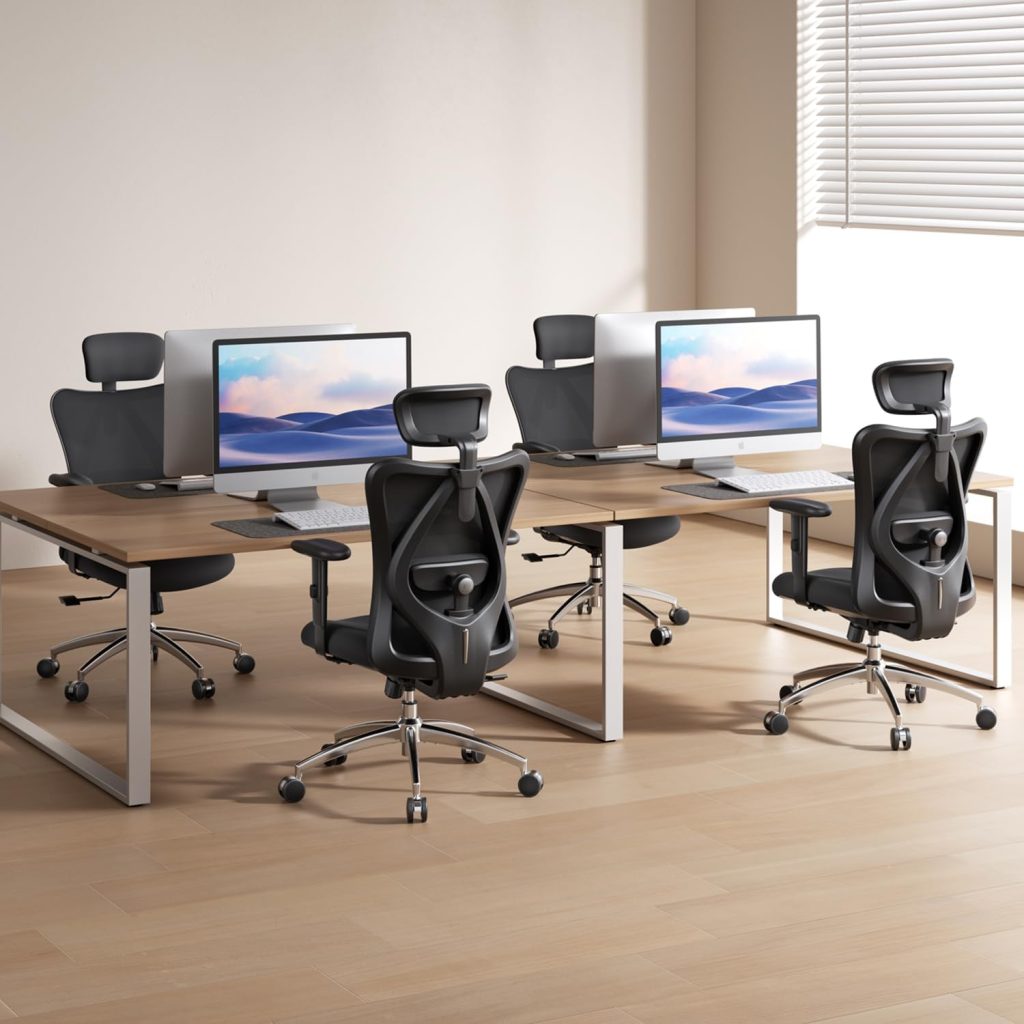
Ergonomic Seating Guide
The best chair for wrist comfort is one that lets you keep your shoulders relaxed, forearms supported, and wrists in a natural position while typing.
A chair cannot treat carpal tunnel syndrome, but a well-adjusted workstation can help you avoid unnecessary strain during computer work.
If you spend hours typing at a desk and experience wrist discomfort, hand tingling, or numbness, you may be searching for an ergonomic chair for carpal tunnel. While a chair alone cannot prevent or treat carpal tunnel syndrome, the right setup can make it easier to maintain a comfortable working position.
The most important features are not necessarily a headrest or an expensive design. Focus first on adjustable armrests, a suitable seat height, enough room to move close to your desk, and a workstation that allows your wrists to remain relatively straight while typing.
In this guide, we explain what to look for, how to adjust your chair, and which specific office chair models are worth comparing.
Quick Answer: What Matters Most?
- Adjustable armrests: Support your forearms without raising your shoulders.
- Correct seat height: Keep your feet supported and your shoulders relaxed.
- Desk compatibility: Sit close enough to the keyboard without reaching forward.
- Comfortable fit: Choose a seat and backrest that fit your body.
- Frequent breaks: Change positions regularly instead of staying in one posture all day.
In This Guide
What to Look for in an Ergonomic Chair for Carpal Tunnel
When comparing chairs, prioritize adjustments that help you work without hunching, reaching, or holding your arms in an awkward position. A chair marketed as ergonomic is not automatically the right fit for every person or desk.
1. Adjustable Armrests
Armrests are one of the most useful features to evaluate. Ideally, they should allow your forearms to rest comfortably while your upper arms stay close to your body and your shoulders remain relaxed.
- Height adjustment: Helps match the armrests to your seated elbow height.
- Width adjustment: Helps position your arms comfortably instead of forcing them inward or outward.
- Forward and backward adjustment: Can help you find support without interfering with the desk.
- Soft, broad contact surfaces: May be more comfortable than narrow or hard edges.
Avoid leaning your wrists or putting prolonged pressure on the sensitive underside of your forearms. Armrests should support a relaxed position, not force your hands into a particular angle.
2. Adjustable Seat Height
Your seat should let you position yourself at a workable height relative to your desk. Keep your feet supported on the floor or a footrest, with your shoulders relaxed and elbows near your sides.
If raising the chair leaves your feet dangling, consider a footrest. If the chair cannot rise high enough for your desk, you may need to reassess the desk and chair combination rather than compensate by reaching upward with your arms.
3. A Seat That Fits Your Body
Seat depth and width affect how close you can sit to the desk. A seat that is too deep may encourage you to slide forward, while a poorly fitting chair can make it harder to maintain a relaxed working posture.
If possible, look for adjustable seat depth and check the manufacturer’s dimensions before buying. A good fit is more important than choosing a chair simply because it has more features.
4. Back Support and Recline
Adjustable lumbar support and a backrest that allows comfortable position changes can help support your overall sitting posture. They do not directly treat nerve compression in the wrist, so treat these as general comfort features rather than carpal tunnel treatments.
5. Enough Clearance Under Your Desk
Even a well-designed chair may be a poor choice if its armrests prevent you from moving close to the keyboard. Check whether the armrests fit beneath your desk or can be adjusted out of the way without compromising support.
3 Office Chairs Worth Comparing
The following models are starting points for comparing ergonomic features, not medical recommendations. Product versions and included adjustments can vary, so verify the current Amazon listing before purchasing.
Option 1 · Budget-Oriented
Amazon Basics Ergonomic Office Chair
This is a model to consider if you want a straightforward office chair and need to compare basic adjustments before committing to a larger purchase.
Check before buying: Confirm the specific model’s armrest design, seat-height range, dimensions, and whether its armrests can be positioned comfortably at your desk.
Option 2 · Mesh Chair
SIHOO M18 Ergonomic Office Chair
The SIHOO M18 is a recognizable ergonomic chair model worth comparing if you prefer a mesh-back design for your home office.
Check before buying: Review the exact version’s armrest adjustments, seat dimensions, lumbar support, and compatibility with your desk. Do not assume every listing includes the same features.
Option 3 · Adjustable Workstation Setup
GABRYLLY Ergonomic Mesh Office Chair
GABRYLLY’s ergonomic mesh chair range is another option to compare if you want a high-back design and armrests that can move out of the way on some versions.
Check before buying: Confirm the precise model and whether its armrests provide the range of movement you need. Flip-up armrests can be convenient, but they are not a substitute for well-positioned forearm support.
How to Choose Between Them
- Choose based on the adjustability you actually need, not the number of features in the product title.
- Compare seat and armrest measurements against your own desk setup.
- Read recent reviews for comments about fit, adjustment stability, and assembly.
- Review the current return policy and warranty before purchasing.
How to Adjust Your Chair for More Comfortable Typing
After choosing a chair, take a few minutes to set it up around your body and desk. The goal is a relaxed position, not a rigid posture that you must maintain all day.
- Set your seat height. Keep your feet supported and your shoulders relaxed. Use a footrest if needed.
- Bring your chair close to the desk. Avoid reaching forward to reach the keyboard and mouse.
- Adjust the armrests. Let your forearms rest lightly while your shoulders remain down and relaxed. Lower or move the armrests if they push your shoulders upward.
- Position the keyboard and mouse. Keep them close enough that you do not have to stretch your arms or bend your wrists sharply.
- Check your wrist position. Aim to keep your wrists relatively straight while typing instead of repeatedly bending them upward, downward, or sideways.
- Change positions regularly. Stand, stretch gently, or take short movement breaks throughout the day.
If the desk is too high for your relaxed elbow position, adjusting the chair alone may not solve the problem. You may need to change the keyboard height, desk setup, or foot support to make the whole workstation fit.
Other Workstation Changes That May Help
A chair is only one part of your workstation. If typing aggravates your symptoms, also review the equipment and habits that affect your hands and wrists.
Keyboard Position
Keep the keyboard close and at a height that allows relaxed shoulders and relatively straight wrists.
Mouse Placement
Place the mouse near the keyboard so you do not need to reach far to the side.
Regular Breaks
Break up long periods of repetitive activity and vary your tasks and positions when possible.
Neutral Wrist Position
Avoid prolonged wrist bending and excessive pressure on the palm or underside of the forearm.
A wrist rest may be useful during pauses, but avoid pressing your wrists into it while actively typing. An ergonomic keyboard or a different mouse may also be worth testing if your current setup encourages uncomfortable wrist positions.
Frequently Asked Questions
Can an ergonomic chair cure carpal tunnel syndrome?
No. An ergonomic chair cannot cure carpal tunnel syndrome. It may help you arrange your workstation more comfortably, but persistent symptoms need appropriate medical assessment and treatment.
Are adjustable armrests important for carpal tunnel?
They can be useful because they help support the forearms while keeping the shoulders relaxed. However, the armrests should not press hard against the wrists or forearms, and their position should work with your desk and keyboard height.
Is a mesh chair better than a padded chair?
Not necessarily. Mesh and padded chairs can both work well if they fit your body and offer useful adjustments. Choose based on comfort, fit, support, and the ability to sit close to your desk without awkward reaching.
Should I buy a chair with a headrest?
A headrest is optional for many desk tasks. For typing, armrest positioning, seat height, desk clearance, and keyboard placement are generally more directly relevant to maintaining a comfortable upper-body position.
When should I seek medical advice?
If you have persistent numbness, tingling, pain, weakness, symptoms that disturb your sleep, or difficulty gripping objects, seek medical advice. Do not rely on a chair change alone to manage worsening symptoms.
Health note: This article provides general workstation guidance, not a diagnosis or treatment plan. Carpal tunnel-like symptoms can have different causes. Consult a qualified healthcare professional for persistent or worsening symptoms.
Final Thoughts
When choosing an ergonomic chair for carpal tunnel concerns, start with fit and adjustability rather than price or appearance. Adjustable armrests, a suitable seat height, and enough clearance to sit close to your desk can help you build a more comfortable workstation.
Remember that your keyboard, mouse, working habits, and overall workstation setup matter too. A chair is one piece of the solution, not a medical treatment.
For a broader comparison of chair styles and features, visit our guide to the best ergonomic chairs.
Affiliate disclosure: As an Amazon Associate, SitBetterLab may earn from qualifying purchases. This does not affect the price you pay.