
SITBETTERLAB WORKSPACE GUIDE
Best Standing Desks with Keyboard Trays
Find a sit-stand workstation that keeps your keyboard at a comfortable height, preserves knee clearance, and makes switching between sitting and standing easier.
A standing desk gives you the flexibility to alternate between sitting and standing, but that does not automatically make your keyboard position ergonomic. If your desktop is too high for comfortable typing, raising or lowering the entire desk may not solve the problem without affecting your monitor position.
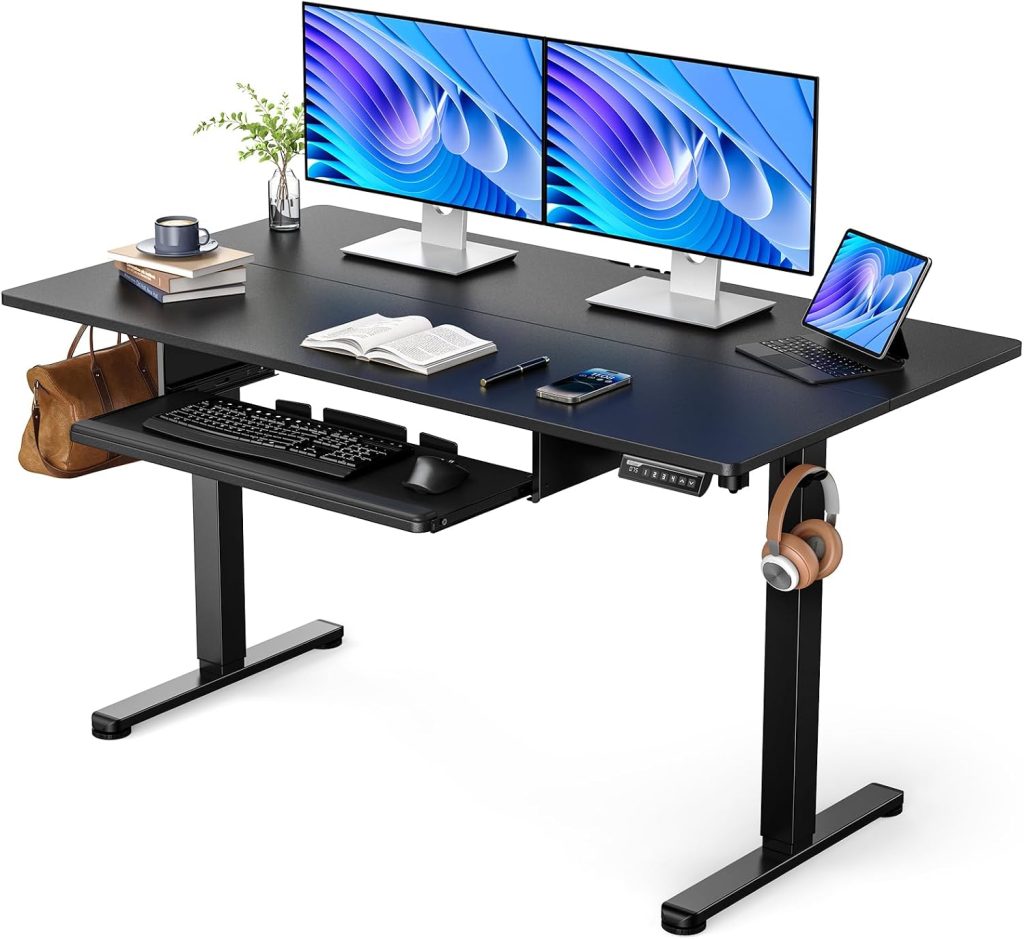
That is where a standing desk with a keyboard tray can help. A well-designed tray provides a separate surface for your keyboard and mouse, allowing you to position your hands more comfortably while keeping the main desktop available for your monitor, laptop, and accessories.
The challenge is choosing a setup that works in both sitting and standing positions. Some desks include a keyboard tray, while others require an aftermarket under-desk tray. Not every tray fits every frame, and some designs reduce knee clearance or interfere with the desk’s adjustment mechanism.
This guide explains which configurations are worth considering, what to check before buying, and how to avoid common compatibility and ergonomic problems.
Quick Answer
For most home offices, the best setup is an electric standing desk with sufficient under-desk clearance and a compatible adjustable keyboard tray. This arrangement allows you to adjust your keyboard position independently when necessary.
If you already own a standing desk, an aftermarket tray may be more economical than replacing the entire workstation. Before buying, check mounting compatibility, tray travel, knee clearance, and cable or frame obstructions.
Table of Contents
- Best Standing Desk and Keyboard Tray Setups
- Electric Standing Desk with a Separate Keyboard Tray
- UPLIFT Standing Desk Configurations
- FLEXISPOT Standing Desk Configurations
- Best Aftermarket Under-Desk Keyboard Trays
- How to Position a Keyboard Tray Ergonomically
- Knee Clearance and Desk Compatibility
- What to Look for Before Buying
- Frequently Asked Questions
Best Standing Desk and Keyboard Tray Setups at a Glance
The following options cover different ways to build a sit-stand workstation. Some are desk configurations to investigate, while others are aftermarket accessories that can be added to a compatible desk. Verify the exact model and included components before ordering.
| Setup | Best For | Main Consideration |
|---|---|---|
| Electric desk + adjustable tray | Most home-office users | Desk travel and tray clearance |
| UPLIFT desk + compatible tray | Buyers comparing configurable workstations | Desktop and accessory compatibility |
| FLEXISPOT desk + compatible tray | Buyers comparing different price points | Frame crossbars and mounting depth |
| Adjustable under-desk tray | Existing standing desk owners | Mounting method and range of motion |
| Compact sliding tray | Small workspaces | Tray width and knee space |
1. Electric Standing Desk with a Separate Adjustable Keyboard Tray
Best Overall Setup for Everyday Work
For most people, an electric standing desk paired with a compatible under-desk keyboard tray is a flexible solution. The desk adjusts the overall workstation height, while the tray creates a separate place for your keyboard and mouse.
This arrangement is especially useful if the main desktop needs to sit higher to position a monitor correctly. Depending on the tray design, you may be able to move the keyboard surface forward, backward, or vertically to achieve a more comfortable typing position.
What to Look For
- An electric desk with a height range suitable for both sitting and standing.
- A tray that fits the available underside mounting area.
- Enough knee and thigh clearance when seated.
- A stable tray platform that supports your keyboard and mouse without excessive movement.
- Enough room for the tray to move without hitting the desk frame or other accessories.
Potential Drawbacks
- An aftermarket tray may require drilling or specific mounting hardware.
- The tray can reduce the space available for your knees.
- The extra hardware increases the overall cost and installation time.
Best fit: People who type for several hours daily and want the flexibility to adjust their keyboard position separately from their monitor.
Explore Electric Standing Desk Options →
2. UPLIFT Standing Desk Configurations
Best for Buyers Who Want a Configurable Workstation
UPLIFT standing desks are worth investigating if you want to configure a workstation around your monitor, keyboard, and accessory requirements. Before choosing a desk, check which desktop sizes and keyboard tray accessories are available for the particular configuration.
A configurable setup can be useful when a standard desk does not provide enough adjustment or clearance. However, accessory availability does not guarantee that every tray fits every desktop or frame. Verify the mounting requirements, underside structure, and available clearance before ordering.
Potential Advantages
- An opportunity to compare desk sizes and workstation accessories together.
- A useful option for users who want to plan the whole workstation before purchasing.
- Can be considered for setups with multiple monitors and several accessories, subject to the selected specifications.
What to Check
- Whether the selected tray is included or sold separately.
- Whether the mounting hardware is compatible with your chosen desktop.
- Whether the tray’s movement interferes with crossbars or other frame components.
Best fit: Buyers who prefer to compare desk and accessory options as part of a single workstation plan.
Compare UPLIFT Desk and Tray Options →
3. FLEXISPOT Standing Desk Configurations
Best for Comparing Different Desk Sizes and Budgets
FLEXISPOT offers standing desks across a range of configurations, making the brand worth comparing when planning a sit-stand workstation. If you want to add a keyboard tray, start with the exact desk model and inspect the frame layout beneath the desktop.
Some standing desks use crossbars or other structural components that can restrict where an aftermarket tray can be installed. This is especially important for sliding trays that need room to extend toward the user. Do not purchase a tray based on desktop width alone.
Potential Advantages
- A range of desk configurations to compare against your room and budget.
- Suitable for buyers who want to select a desk first and assess accessory options separately.
- Can be paired with a compatible tray if the underside layout provides enough mounting space.
What to Check
- The actual desktop depth and underside mounting area.
- The location of frame rails, motors, cables, and control boxes.
- Whether the tray remains clear of your legs throughout its full adjustment range.
Best fit: Buyers comparing different electric standing desk configurations who are comfortable verifying accessory compatibility before purchase.
Compare FLEXISPOT Desk Options →
4. Adjustable Under-Desk Keyboard Trays
Best for Existing Standing Desk Owners
If you already own an electric standing desk, you may not need to replace it. An aftermarket under-desk keyboard tray can add a separate typing surface while preserving the main desktop for your monitor and other equipment.
There are several types of trays to consider. Basic sliding trays move in and out, while more adjustable designs may also tilt, swivel, or change height. The extra adjustment can be useful, but it does not automatically mean a tray will fit your body or your desk. Compare the actual range of motion and mounting design.
What We Like
- Can improve keyboard positioning without replacing the entire desk.
- Different widths and mounting designs accommodate different workstations.
- Some designs provide independent height or tilt adjustments.
Potential Drawbacks
- Installation may require drilling into the desktop.
- The mounting hardware must not interfere with the standing desk frame.
- A tray that hangs too low can make seated typing uncomfortable or restrict leg movement.
Best fit: Anyone whose current desktop is too high for comfortable typing and who has sufficient space underneath for a compatible tray.
Shop Adjustable Under-Desk Keyboard Trays →
5. Compact Sliding Keyboard Trays for Small Workspaces
Best for Limited Desktop Space
A compact sliding keyboard tray can help keep a small workstation organized. When you finish typing, you can slide the tray back underneath the desk instead of leaving the keyboard and mouse on the main surface.
This type of setup can be especially helpful on a 48-inch-wide standing desk, where the monitor, laptop, and other equipment already use much of the available desktop area. However, the tray still needs sufficient clearance for your knees and thighs.
Check These Dimensions
- Tray width: Enough room for your keyboard and mouse, including any extra space needed for comfortable hand movement.
- Tray depth: Enough room for the keyboard without forcing your wrists into an awkward position.
- Mounting depth: Enough space under the desktop for the rails and brackets.
- Travel distance: The tray should pull out far enough to reach a comfortable typing position.
- Leg clearance: The tray and hardware should not obstruct your knees when sitting.
Best fit: People working with limited desktop space who want to tuck the keyboard away when it is not in use.
Explore Compact Sliding Keyboard Trays →
How to Position a Keyboard Tray Ergonomically
A keyboard tray is useful only when it places your hands in a comfortable working position. Focus on your posture and reach rather than choosing a tray based solely on its size or number of adjustment features.
1. Keep Your Shoulders Relaxed
When typing, your shoulders should remain relaxed rather than lifted toward your ears. Keep your elbows near your body and position the keyboard so you do not have to reach forward excessively.
If the desktop is too high, lowering the keyboard with a tray may help. However, if the tray hangs too low, it can create a different problem by forcing your wrists or elbows into an uncomfortable position.
2. Adjust the Tray for Sitting
For seated work, position the keyboard so your forearms are approximately parallel to the floor or slightly sloping downward, with your wrists in a comfortable neutral position. Your feet should be supported, and your knees should have enough room beneath the desk.
Test the setup while sitting in your normal working position. A tray that feels comfortable when you stand may be too low or too far forward when you sit, depending on your chair height and the tray’s adjustment range.
3. Recheck the Position When Standing
When you raise the desk, check the keyboard height again. Your elbows should remain close to your body, your shoulders relaxed, and your wrists comfortable while typing.
A tray that moves with the desktop will rise as the desk rises. That is normal, but it means you should confirm that the overall adjustment range works for both positions. If the tray offers independent height adjustment, use it to fine-tune the keyboard position where appropriate.
4. Keep the Mouse Within Easy Reach
If you use a separate mouse, place it at roughly the same level as the keyboard and close enough that you do not have to stretch your arm outward. Some trays include a mouse platform or allow the mouse to sit beside the keyboard.
Check the usable surface width before purchasing. A tray may technically fit your keyboard but leave too little room for comfortable mouse movement.
Keyboard Tray Clearance: What You Must Measure
One of the most common mistakes is buying a tray based on the desktop’s width without checking the underside. Standing desks often have support rails, crossbars, motors, control boxes, or cable-management hardware that can interfere with installation.
| Measurement | Why It Matters |
|---|---|
| Available mounting width | Determines whether the tray brackets and rails can fit. |
| Underside depth | Determines whether the tray can be installed without interfering with frame components. |
| Vertical clearance | Helps prevent the tray from pressing against your thighs or knees. |
| Tray extension | Determines whether the keyboard can move into a comfortable working position. |
| Desk travel | Ensures cables and accessories remain clear throughout the full height-adjustment range. |
Before installing a tray, raise and lower the desk carefully to confirm that all components remain clear. Follow the desk manufacturer’s instructions and avoid drilling into areas that contain motors, wiring, or structural components.
What to Look for Before Buying a Standing Desk with a Keyboard Tray
1. Decide Between an Integrated Tray and an Add-On
A desk sold with a keyboard tray may simplify purchasing, but verify whether the tray is included in the exact configuration. An add-on tray gives you more choice if you already own a desk or want a specific adjustment mechanism.
Compare the combined price of the desk and tray with the price of a package that includes both. Also check whether installation requires drilling or special brackets.
2. Check the Adjustment Mechanism
Basic sliding trays provide forward and backward movement. More adjustable models may offer tilt, swivel, or height changes. The right choice depends on how much flexibility you need and whether the additional hardware leaves enough room for your legs.
Pay attention to the usable adjustment range rather than relying on the word “ergonomic” in a product title. A tray with extensive movement may still be unsuitable if it cannot reach your preferred position.
3. Measure Knee and Thigh Clearance
Check the space between the underside of the desktop, the bottom of the tray, and the frame components. Sit in your normal chair position and account for the space your thighs need when moving closer to the desk.
This is particularly important for taller users and desks with thick drawers or deep support rails. A tray that improves wrist positioning but forces your legs into an awkward position is not a good overall solution.
4. Consider the Keyboard and Mouse You Use
A compact keyboard may work on a narrow tray, while a full-size keyboard and mouse need more usable surface area. If you use a separate number pad, large mouse, or ergonomic keyboard, measure the entire setup before choosing a tray.
Check whether the tray surface supports your preferred arrangement and whether the mouse can sit at a comfortable distance from your body.
5. Review Mounting Hardware and Weight Limits
Confirm that the tray can be attached securely to your desktop and that its weight rating covers the keyboard, mouse, and any other items you intend to place on it. Use the supplied hardware and follow the installation instructions.
Do not assume a tray is compatible simply because it is marketed as universal. Desktop thickness, underside structure, mounting depth, and frame position can all affect compatibility.
6. Plan for Cable Routing
Keyboard cables, mouse cables, and powered accessories must remain clear of the tray’s sliding mechanism. With an electric standing desk, make sure the cables also have enough slack for the desktop to move through its full range.
Route cables so they cannot become pinched between the tray, desktop, and frame. If you use a wireless keyboard and mouse, check battery access and the placement of any USB receiver.
Standing Desk with Keyboard Tray vs. a Standard Standing Desk
| Feature | With Keyboard Tray | Standard Desktop |
|---|---|---|
| Keyboard positioning | May allow separate adjustment | Determined by desktop height |
| Desktop space | More available for monitors and accessories | Keyboard and mouse occupy the main surface |
| Knee clearance | May be reduced by the tray | Usually simpler underneath |
| Installation | May require additional mounting | No tray installation needed |
| Cost | Potentially higher | Potentially lower |
A keyboard tray is not essential for every standing desk user. If the desktop already adjusts low enough for comfortable typing while keeping your monitor in a suitable position, a tray may add unnecessary complexity. It is most useful when it solves a specific positioning or workspace problem.
Frequently Asked Questions
Are standing desks with keyboard trays better for ergonomics?
They can help when a separate keyboard surface makes it easier to position your hands comfortably. However, the benefit depends on tray height, reach, wrist position, and knee clearance. A poorly positioned tray can create new problems.
Can I add a keyboard tray to an electric standing desk?
Often, yes, provided the desk has enough mounting space and the tray is compatible with its desktop and frame. Check for crossbars, motors, control boxes, and other obstructions before drilling or installing hardware.
Do keyboard trays work in both sitting and standing positions?
A tray attached to the desktop moves up and down with the desk. This can work in both positions if the combined height range suits your body. A tray with independent adjustment may offer additional flexibility, but you should test the available range before buying.
Will a keyboard tray reduce knee clearance?
It can. The tray, brackets, and sliding rails occupy space beneath the desktop. Measure the available vertical clearance and consider your thigh position while seated before selecting a model.
What size keyboard tray should I buy?
Choose a tray wide enough for your keyboard and mouse with room for comfortable movement. Measure your actual equipment, including a number pad or other accessories, and compare those measurements with the tray’s usable surface rather than its overall outside dimensions.
Are sliding keyboard trays better than fixed trays?
Sliding trays can be tucked away when not in use and allow the keyboard to move closer to the user. Fixed trays are simpler but provide less flexibility. The right option depends on your available space, preferred reach, and whether you need independent positioning.
Should I buy a standing desk with a built-in tray or buy a separate tray?
A package that includes a tray may simplify compatibility checks, but verify exactly what is included. A separate tray gives you more choice and can be less expensive if you already own a desk. Compare the total cost, mounting requirements, and available adjustment range.
Final Verdict: Choose the Setup That Fits Your Body and Desk
The best standing desk with a keyboard tray is not necessarily the one with the most adjustment features. It is the one that provides a comfortable typing position while preserving enough room for your legs and equipment.
- For most home offices: Start with an electric standing desk and a compatible adjustable tray.
- For an existing desk: Compare aftermarket under-desk trays before replacing the workstation.
- For small spaces: Consider a compact sliding tray, but check knee clearance carefully.
- For a configurable workstation: Compare desk and accessory combinations from brands such as UPLIFT and FLEXISPOT.
Before purchasing, measure the mounting area, confirm the tray’s adjustment range, check compatibility with the desk frame, and test the intended seated and standing positions.
Disclosure: SitBetterLab may earn a commission from qualifying purchases made through affiliate links, at no additional cost to you. Product availability, configurations, specifications, and prices may change. Always verify the current product listing and compatibility requirements before purchasing.